New Invitation Received
Act on every connection request the moment it lands — capture the sender as a contact, review their profile, and accept or decline automatically or with your team in the loop.
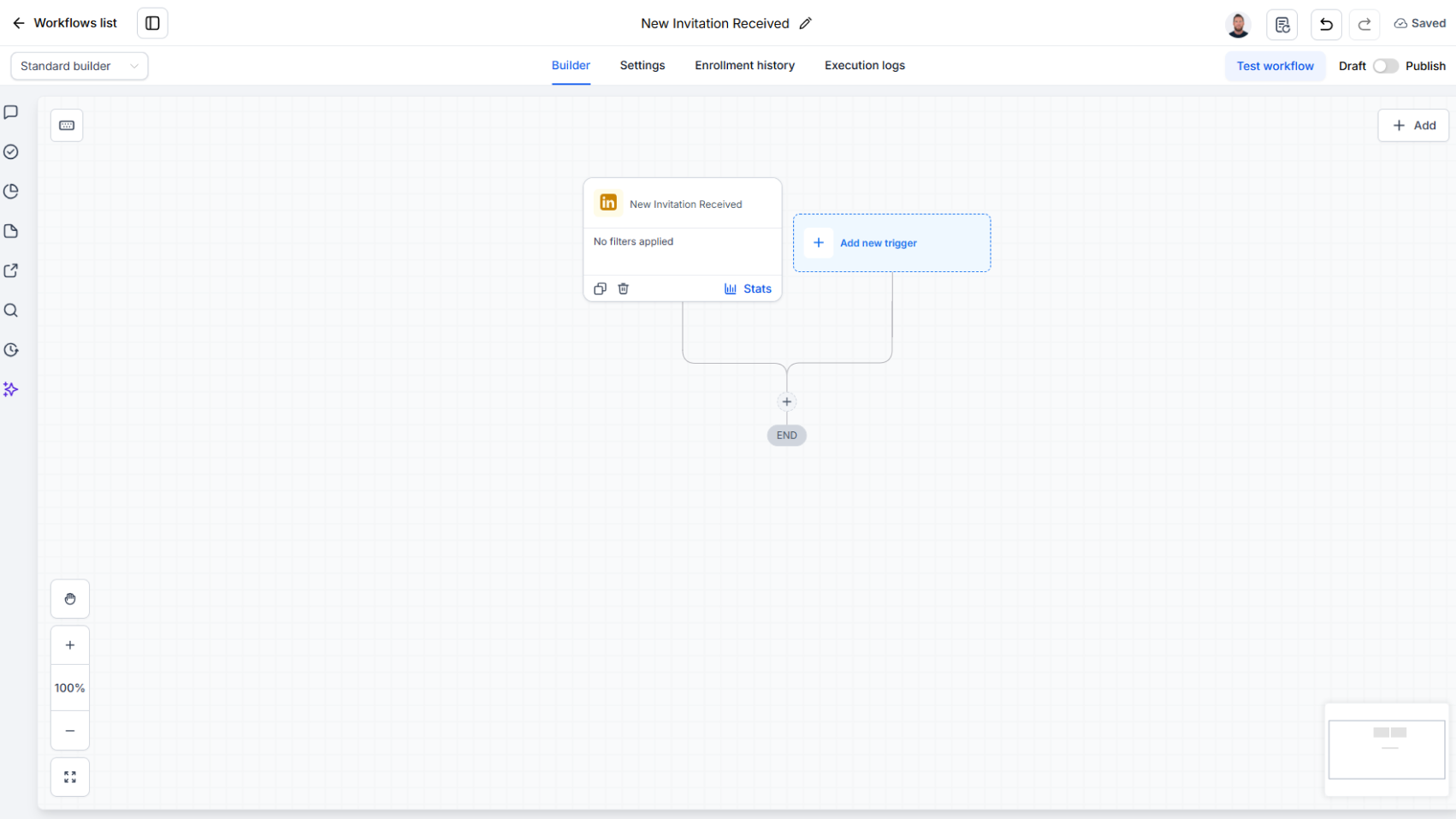
Trigger Overview
The New Invitation Received Trigger runs when someone sends a connection request to the connected LinkedIn account. LinkedConnector checks periodically and fires the trigger once per received invitation. Use it to capture the sender as a contact, handle the request, retrieve their profile, or alert your team to review the request.
Use Cases
- Contact Capture – Add everyone who requests to connect to your CRM, before you've even responded
- Automated Handling – Qualify the sender, then accept or decline the request with the Handle Invitation Received action
- Qualification – Pull the sender's full profile with Retrieve User Profile and route the request based on your criteria
- Team Review – Notify your team so a human can review the request before anything is actioned
Inputs and Required Data
This trigger does not require manual inputs. It fires automatically when the connected account receives a connection request.
Response
When activated, the trigger returns:
Invitation ID– Identifier of the received invitation — required to handle the requestProvider ID– Internal LinkedIn identifier of the senderPublic ID– Public LinkedIn identifier of the senderProfile URL– Link to the sender's LinkedIn profileDescription– Sender's LinkedIn headlineMessage– The note attached to the invitation, empty if the request was sent without oneInvitation Date– When the invitation was receivedInvitation Shared Secret– Required to handle the request — pass it to the Handle Invitation Received action along with the Invitation IDContact ID– ID of the matching contact in your CRM, if one exists
Contact ID is only populated when an existing contact in your CRM matches the sender's Provider ID. If no matching contact exists, this field is empty — which is why every workflow built on this trigger starts with a find-or-create step.
Workflow Integration
Step-by-Step Example
- Trigger the Workflow
- Start with the New Invitation Received Trigger
- Find or Create the Contact
- Add a Find Contact action (by ID) using the Provider ID from the trigger payload
- If a contact is found → Continue to your follow-up actions
- If no contact is found → Create a new contact, then continue
- Qualify the Sender
- Call Retrieve User Profile to pull full profile data, and store the invitation message on the contact for context
- Handle the Invitation
- Use the Handle Invitation Received action, passing the Invitation ID and Invitation Shared Secret from the trigger payload, and choose how to respond
- Or, for a human-in-the-loop flow, notify your team and let them action the request
Monitoring the Trigger
You can confirm the trigger is registered and monitor it from the account dashboard:
- Open Sub-Accounts in the account dashboard
- Select the sub-account to open the Sub Account Details modal
- Under Workflow Triggers, each registered trigger is listed with its status — New Invitation Received shows a green Active indicator when it's running
If New Invitation Received isn't listed or doesn't show as Active, the trigger isn't registered. To register it:
- Delete the trigger from the workflow
- Save the workflow
- Refresh the page
- Re-add the trigger
- Save
Then check the dashboard again to confirm the trigger shows as Active.
Related Actions
- Handle Invitation Received – Accept or decline the request using the Invitation ID and Shared Secret from this trigger
- Retrieve User Profile – Pull the sender's full profile data before deciding how to respond
- Send A Message – Follow up after accepting to start the conversation
Common Errors and Troubleshooting
Actions After the Trigger Get Stuck
- Cause: No contact record was found or created before the follow-up actions ran
- Solution: Add a Find Contact action (by ID) immediately after the trigger, and create the contact if none is found
Contact ID Field Is Empty
- Cause: No existing contact in your CRM matched the sender's Provider ID
- Solution: This is expected for new senders. Create the contact in your find-or-create step and it will be linked from then on
Handle Invitation Received Fails
- Cause: The Invitation ID or Shared Secret wasn't passed through from the trigger
- Solution: Map both fields directly from the trigger payload into the Handle Invitation Received action — both are required
Trigger Seems Delayed
- Cause: Received invitations are polled two to three times per day, not in real time
- Solution: This is expected behavior. Build workflows around periodic delivery rather than instant response
Best Practices
- Always find or create the contact immediately after the trigger — nothing downstream works without it
- Qualify before you auto-accept. Pull the sender's profile and check it against your criteria, or route to your team for review
- Store the invitation message on the contact record — it's useful context for every conversation that follows
- Use delays (15–60 seconds) when chaining multiple LinkedIn actions to stay within rate limits