New Connection
Start workflows automatically when a new LinkedIn connection is established. Use this trigger to keep your CRM up to date, enrich contact records, and launch automated engagement sequences.
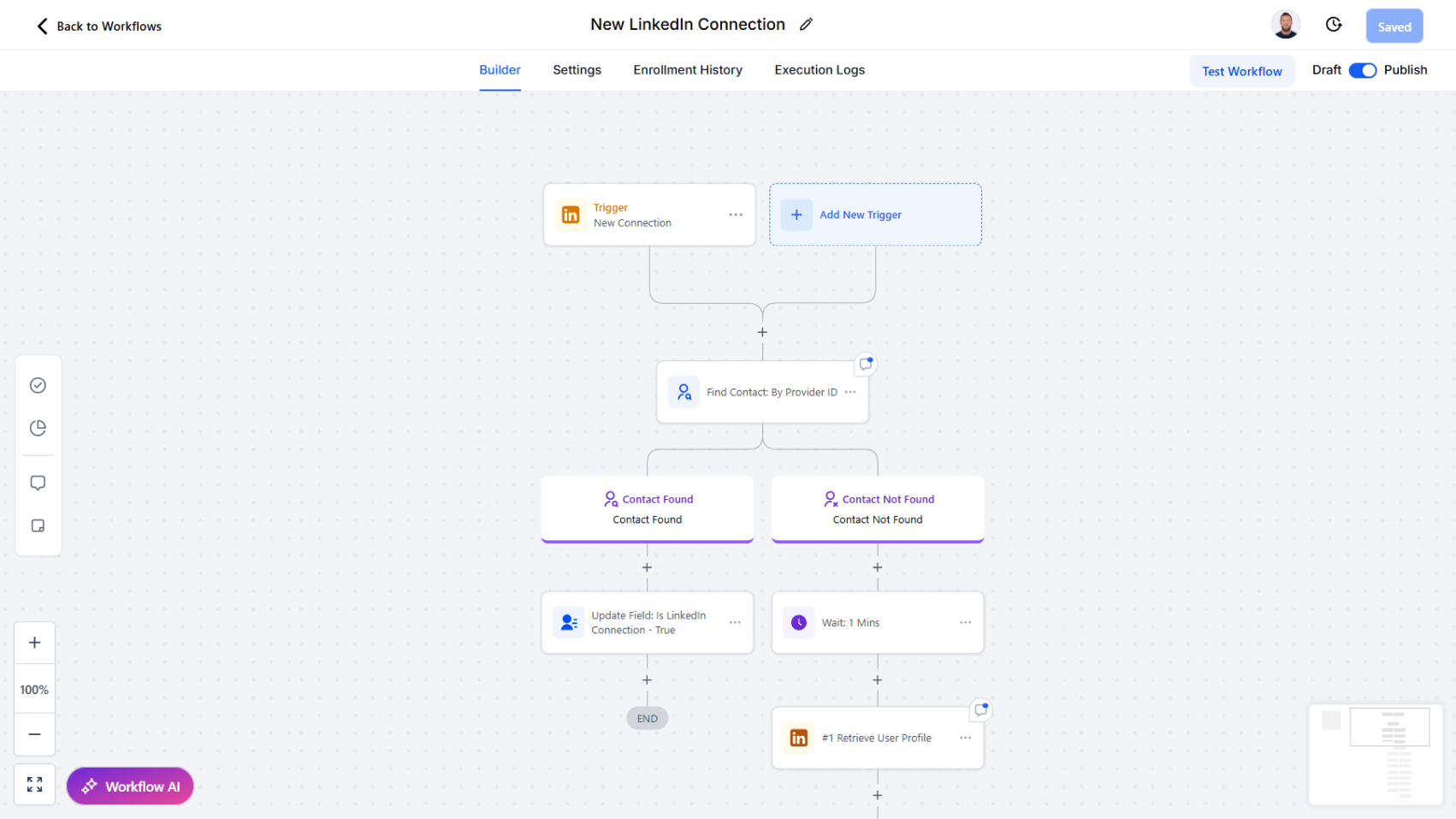
Trigger Overview
The New Connection Trigger activates whenever a new LinkedIn connection is created. This allows you to immediately capture the connection in your CRM, check for an existing record, and either update or create a new contact. From there, you can run enrichment actions (like Retrieve User Profile) or engagement workflows (such as tagging, messaging, or follow-up tasks).
On installation, you must delete the New Connection Trigger, save the workflow, refresh the page, re-add the trigger, save, and publish again.
This process registers the trigger with our backend software.
Use Cases
- Contact Sync – Automatically add new LinkedIn connections to your CRM
- Enrichment – Immediately pull full LinkedIn profile data for new connections
- Segmentation – Tag or categorize contacts when they become a connection
- Automated Sequences – Launch message sequences, email nurtures, or internal tasks after a connection is established
Inputs and Required Data
This trigger does not require manual inputs. It automatically fires when a new LinkedIn connection occurs.
Response
When activated, the trigger returns:
- Provider ID – Internal LinkedIn identifier of the new connection
- Public ID – Public LinkedIn identifier
- Full Name – Contact’s name
- Profile URL – Link to the LinkedIn profile
- Headline – Contact’s LinkedIn headline
- Is Relationship – Whether the connection is established (
truefor new connections) - Invitation Status – Status of the originating invitation (empty once the connection is established)
- Network Distance – Relationship distance to the connected account (returns
FIRST_DEGREEfor new connections)
Contact Write-Back
If the new connection matches an existing contact, the trigger automatically updates that contact after it fires — no additional workflow step needed:
- Is Connection field →
true - Invitation Status field → cleared
- Network Distance field →
FIRST_DEGREE
Only fields that have been mapped in the LinkedIn settings panel are updated — each of the three fields above must be mapped for its write-back to take effect. An unmapped field is simply skipped.
This write-back is non-blocking — it runs after the trigger sends, so it never delays or holds up the rest of your workflow. If no contact is matched, no write-back occurs; run Retrieve User Profile or your own Find/Create Contact step first if you need the connection captured as a new record.
Workflow Integration
Step-by-Step Example
- Trigger the Workflow
- Start with the New Connection Trigger
- Check for Existing Contact
- Use an If/Else step to search by Provider ID in your CRM
- If a contact exists → Tag them (e.g., “Is LinkedIn Connection = True”)
- If no contact exists → Create a new contact
- Enrich the Contact
- Call Retrieve User Profile to populate detailed LinkedIn data (email, phone, work history, etc.)
- Add Engagement Steps
- Fetch recent posts with List All Posts or Retrieve Last Post
- Update CRM records with the content for context
- Optionally, set reminders or tasks for follow-up
Example Workflow Diagram
- New Connection Trigger → Check If Contact Exists
- If Found → Tag as LinkedIn Connection
- If Not Found → Wait 1 Minute → Retrieve User Profile → Create Contact
- Enrichment Step → Fetch Recent Posts → Update Contact
Related Actions
- Retrieve User Profile – Enrich new connection records with detailed data
- List All Posts – Pull recent posts to support engagement
- Send Message To A Chat – Follow up with personalized messaging after connecting
Common Errors and Troubleshooting
Trigger Not Firing
- Cause: The trigger wasn’t properly registered during setup
- Solution: Delete the trigger, save, refresh, re-add, and publish the workflow again
Duplicate Records
- Cause: No check for existing CRM records before creating new contact
- Solution: Always use an If/Else step to search CRM first
Missing Profile Data
- Cause: Trigger only returns limited fields
- Solution: Chain with Retrieve User Profile for complete enrichment
Best Practices
- Always include an If/Else step to check for existing contacts before creating new ones
- Tag or flag contacts to track who is a LinkedIn connection
- Run enrichment immediately (profile + recent posts) to maximize context for sales or recruiting
- Use delays (15–60 seconds) when chaining multiple LinkedIn actions to stay within rate limits
Advanced Tips
- AI-Driven Follow-Up – Combine with List All Messages to craft personalized messages based on connection history
- Segmented Workflows – Trigger different workflows depending on headline, industry, or company size
- Engagement Automation – Automatically fetch and store new connection’s recent posts to prepare for meaningful interactions