Changelog

Keep track of all new product updates, fixes, and improvements.

Duplicate Contact Detection in LinkedIn Importer

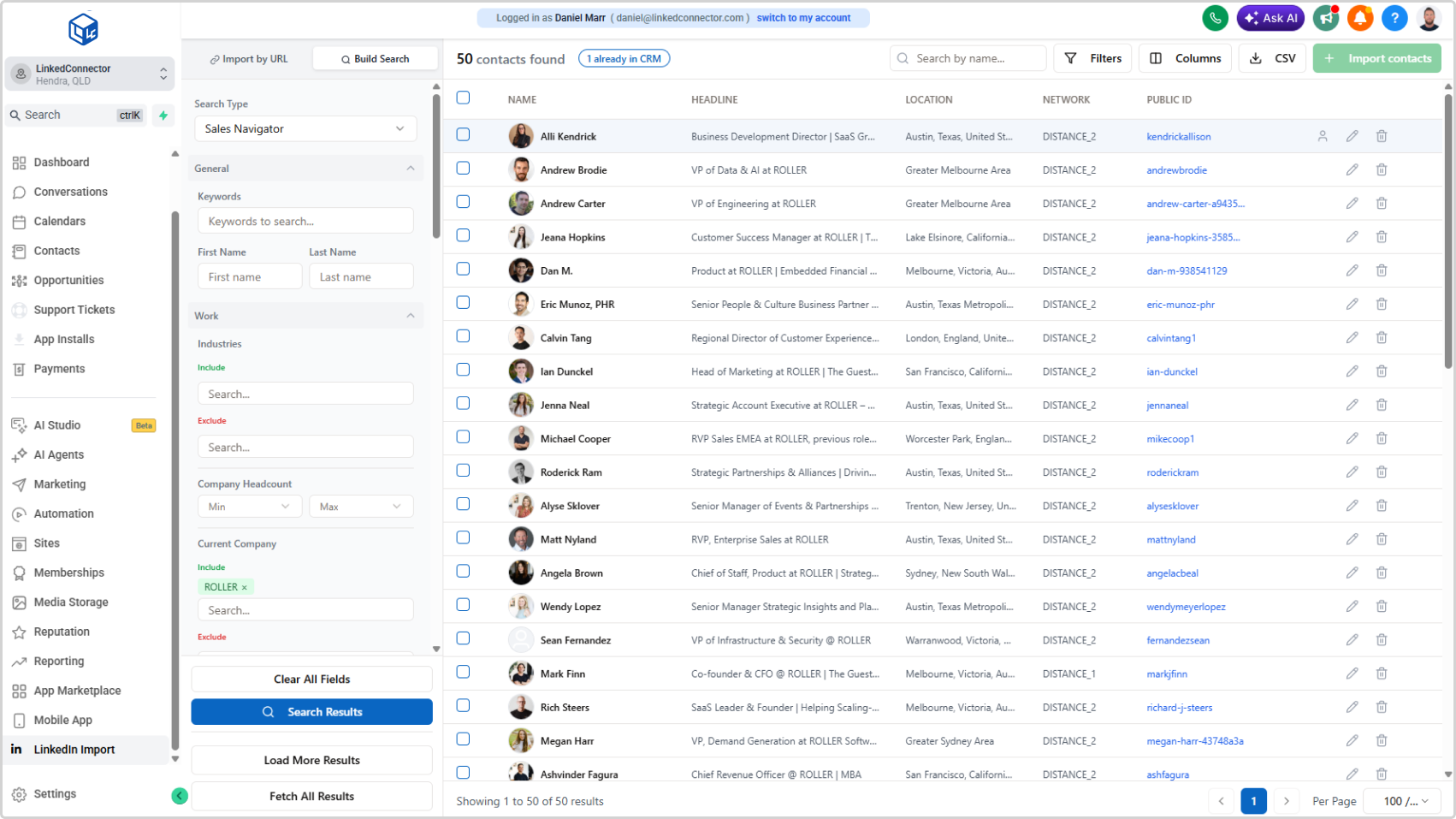
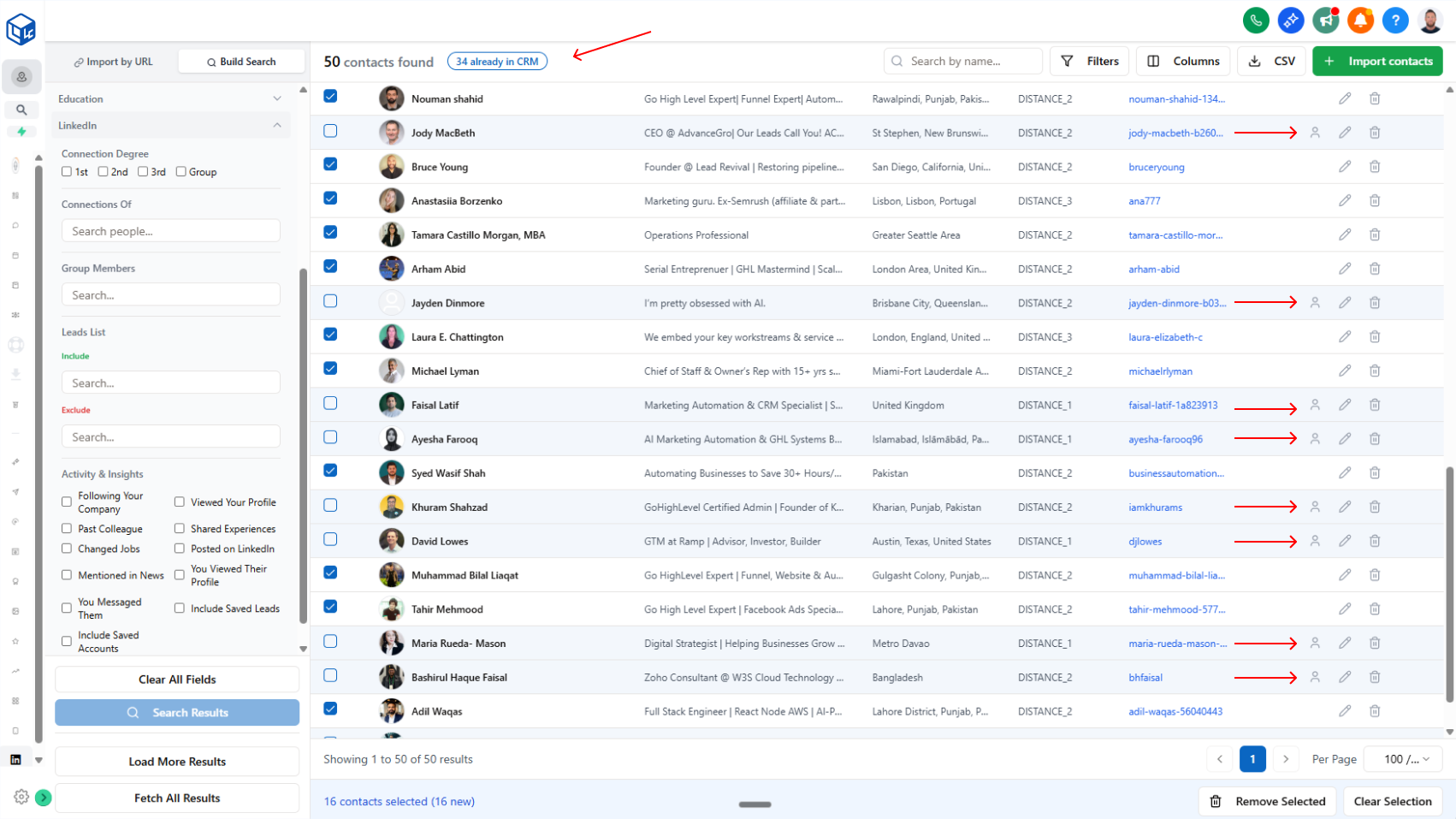
Avoid importing duplicate contacts. The LinkedIn Importer now shows which contacts are already in your CRM and automatically skips them when you select all—preventing duplicate enrichment and outreach.

Stop importing contacts you already have. Instantly see which leads are already in your CRM.

What it does:

When you search for LinkedIn profiles using the LinkedIn Importer, the system now checks your CRM and highlights any contacts that already exist. A badge at the top shows the exact count (e.g., "34 already in CRM"), and duplicate rows are highlighted with a profile icon on the right.

  • Duplicates are clearly marked and visually highlighted
  • Badge shows exact count of contacts already in your CRM
  • When you select all, only new contacts are selected (duplicates automatically skipped)
  • You can manually check duplicates if you want to update their data with new information

Why it matters:

No more accidental duplicate imports. You avoid enriching the same contact twice, sending duplicate outreach, or wasting credits on contacts you already own. Full control stays with you—skip duplicates by default, but override when you need to refresh contact data.

How to use it:

Search for LinkedIn profiles in the LinkedIn Importer. Review the badge showing duplicates, then select all to import only new contacts. Check any duplicate rows manually if you want to update them.
Map Public ID Field Key for Contact Matching

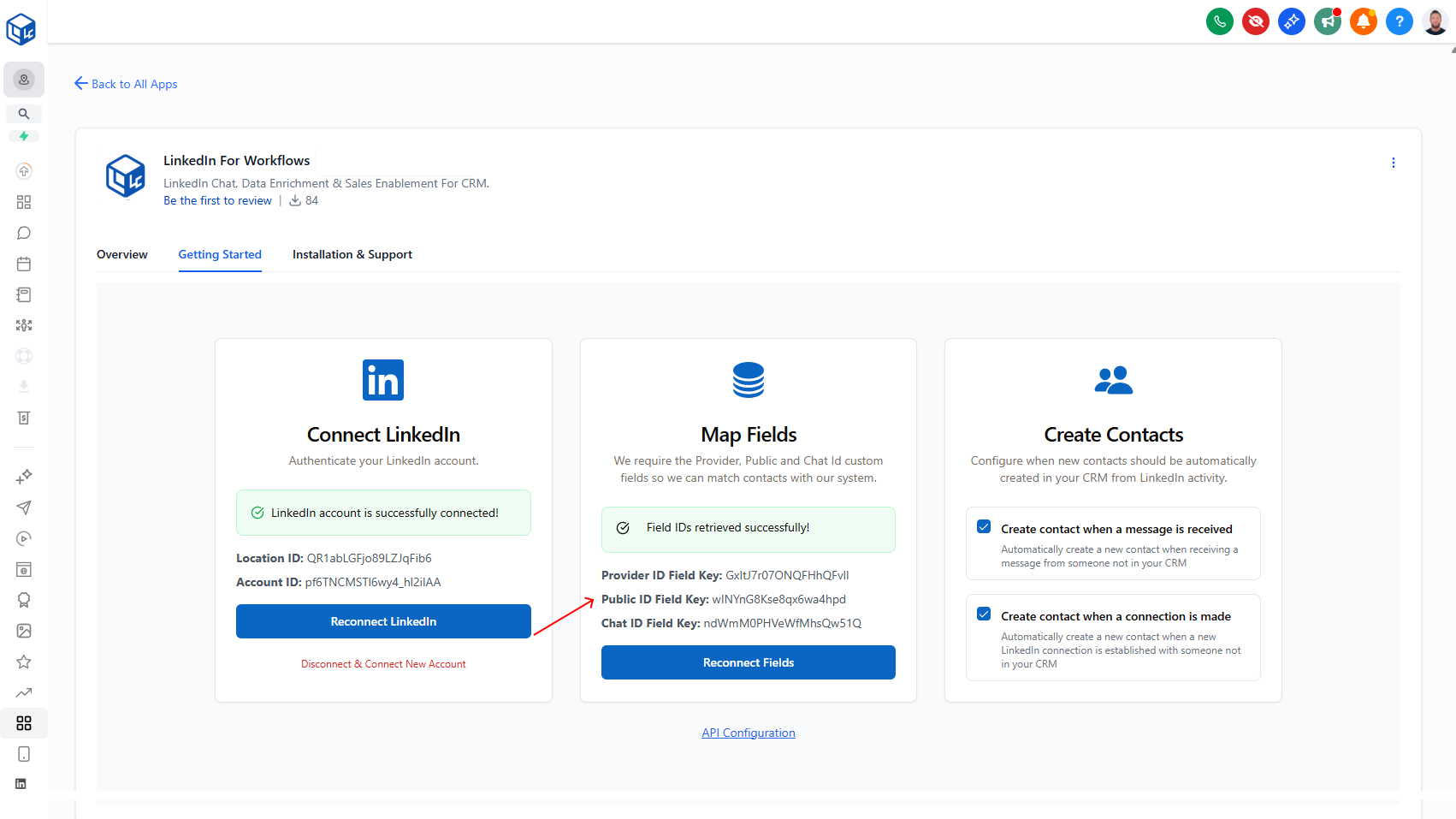
Map your Public ID field for better contact lookups and duplicate detection. When messages arrive or you import contacts, the system can now match them more accurately by checking the Public ID in your CRM—reducing duplicates and improving data accuracy.

Improve contact lookups and duplicate detection by mapping your Public ID field.

What it does:

You can now map your CRM's Public ID field to LinkedConnector. This gives the system a second way to find and match contacts in your CRM—especially useful when messages come in or you're importing new leads. The system uses this alongside Provider ID, so you get more accurate lookups and better duplicate detection.

  • Map your Public ID field key from your CRM custom fields
  • Improves accuracy when messages arrive (contacts matched faster)
  • Prevents duplicate imports when you're bringing in new leads
  • Works across all LinkedIn account types (Classic, Sales Navigator, Recruiter)

Why it matters:

If you switch LinkedIn account types or import contacts across different APIs, the Public ID provides redundancy. Instead of relying on a single identifier that might change, you've got a backup way to match contacts, which means fewer duplicates and more reliable workflows.

How to use it:

Go to Sidebar → Marketplace → Installed Apps → LinkedConnector → Getting Started tab → Map Fields card → Click "Reconnect Fields" and include your Public ID field key.

Note: This is optional but highly recommended, especially if you're importing contacts regularly.

Improved Activity Logs Format

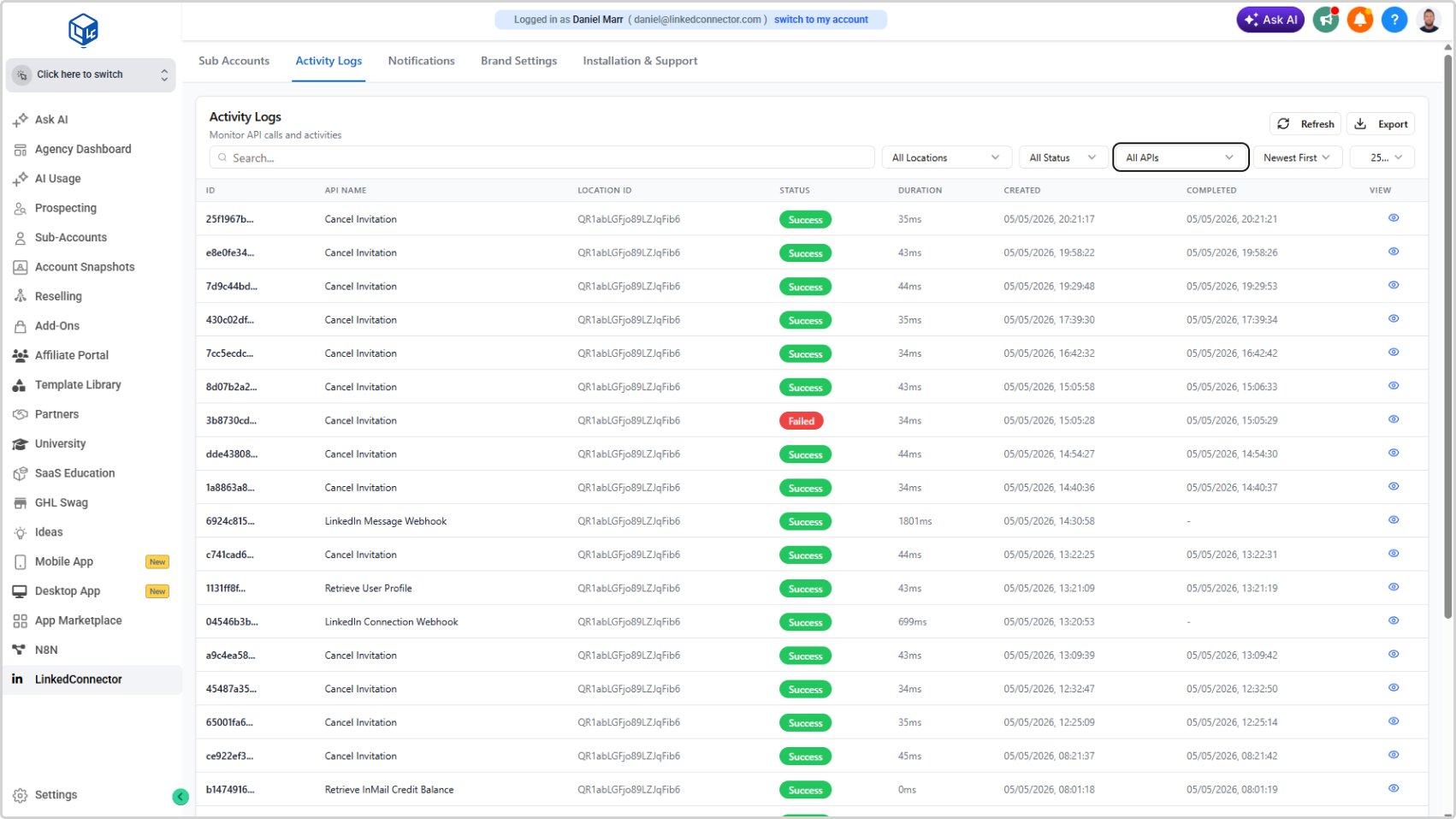
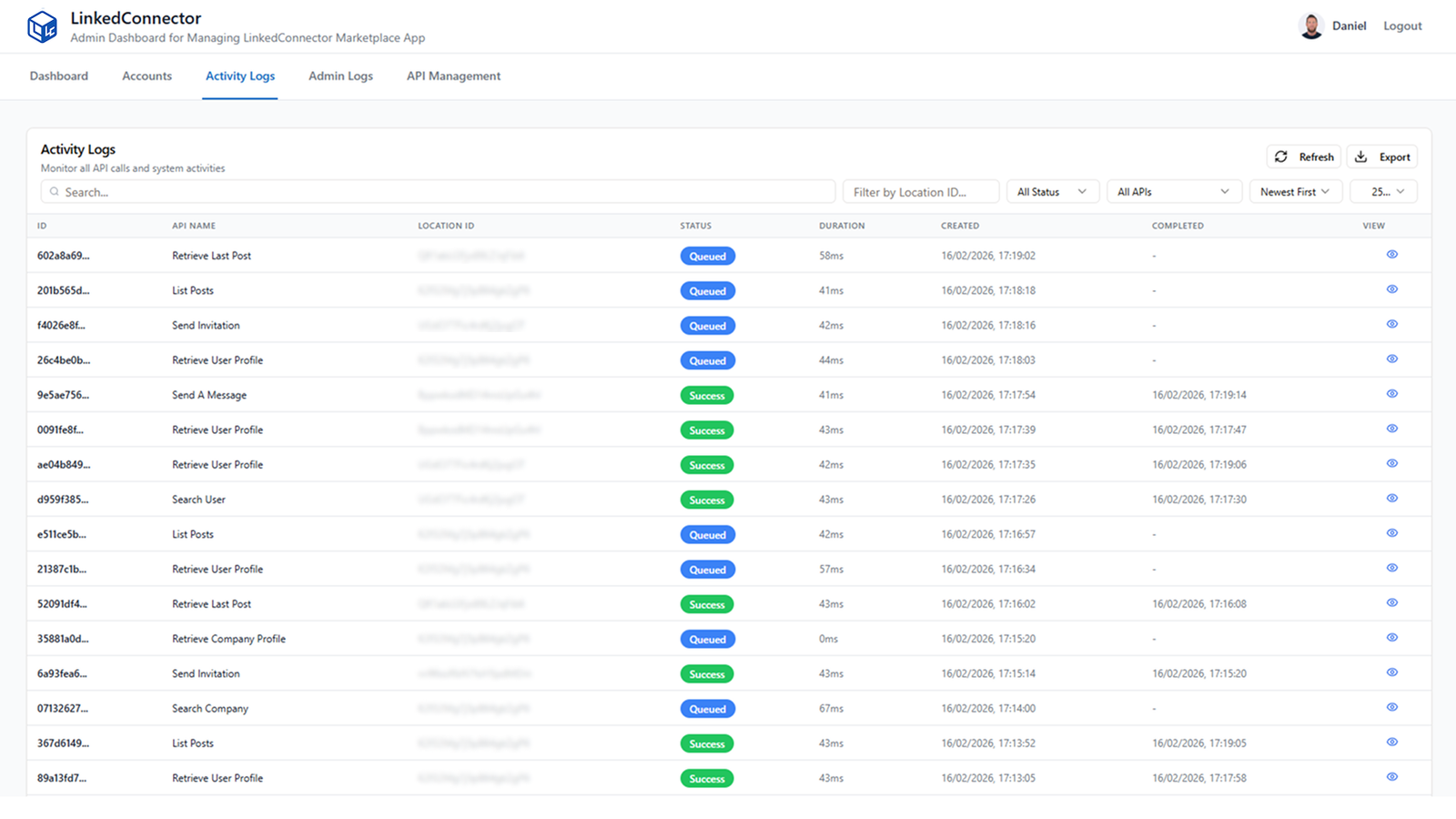
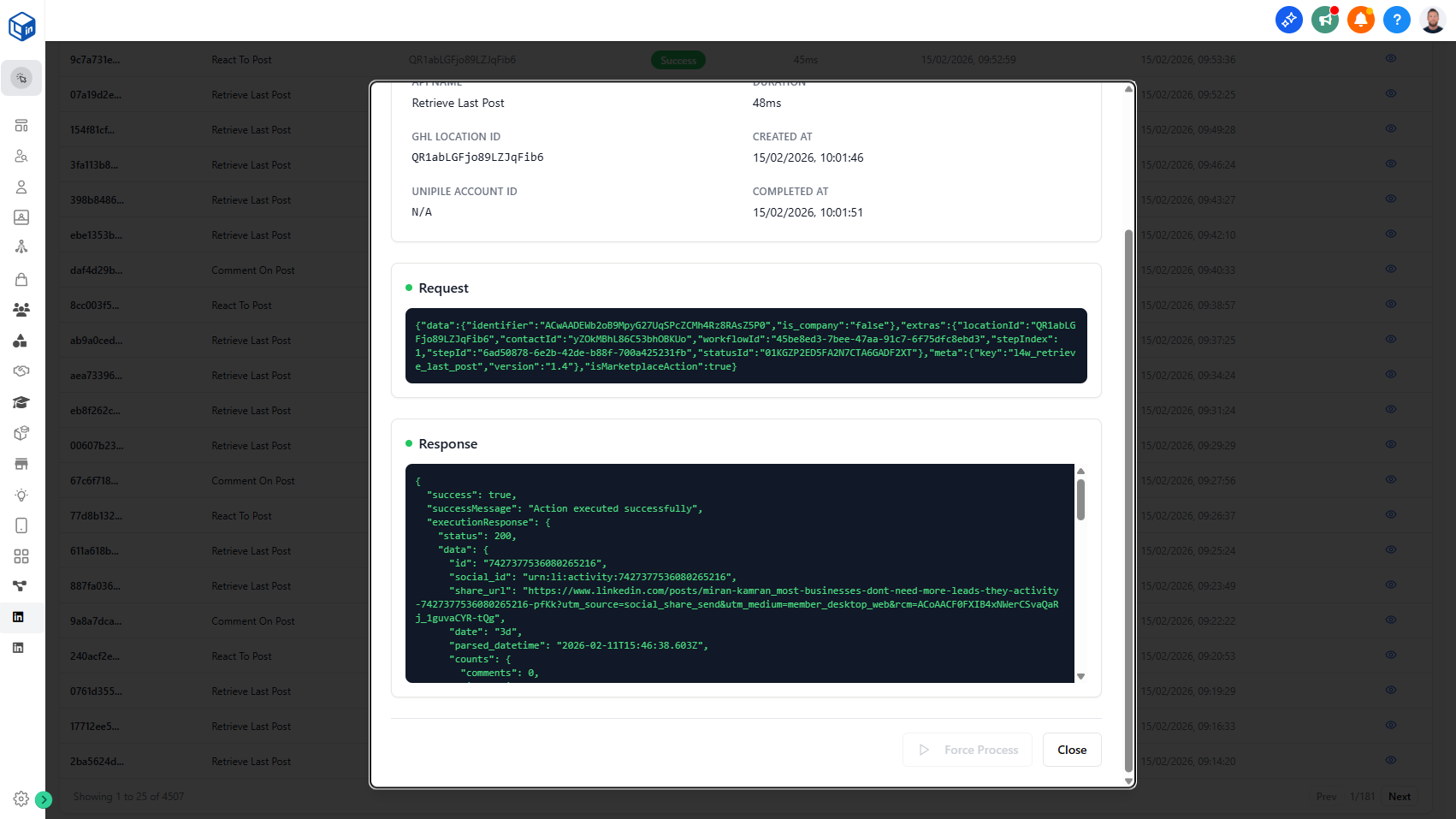
Activity Logs now show request and response payloads side by side, making it straightforward to see exactly what was sent and what came back — including missing fields, Provider IDs, and error details.

What's New

  • Request and response data displayed together in each log entry
  • Missing required fields (e.g., Provider IDs) are immediately visible
  • Log ID and Location ID shown for easy reference when contacting support
  • Clearer distinction between workflow configuration issues and missing contact data

Why It Matters

Instead of guessing why a workflow action failed, you can see the exact problem in the log. Faster diagnosis, fewer support tickets.

Agency Management Dashboard

Customize Your Brand Colors

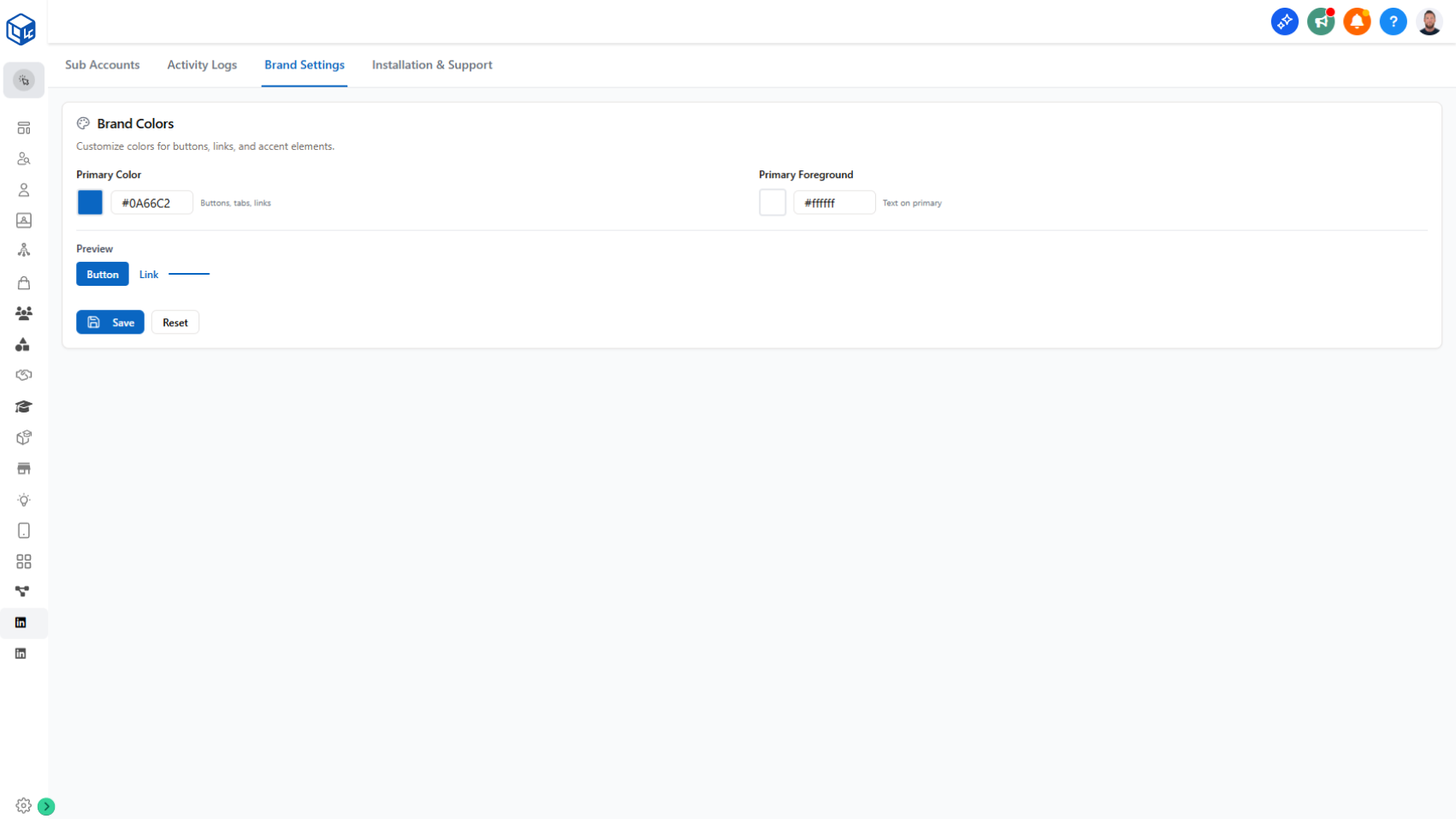
You can now set your agency's primary brand color and foreground color in the Agency Management Dashboard. Changes apply instantly across the Lead Importer and Getting Started Connection page, with a live preview before you save.

What's New

  • Set a primary brand color for buttons, tabs, and links
  • Set a primary foreground color for text on primary elements
  • Live preview of button and link appearance before saving
  • Changes apply immediately across all affected pages on refresh

Why It Matters

Your sub-account users see your brand throughout their workflow — not a generic third-party interface.

Ability to Disconnect & Reconnect LinkedIn Accounts

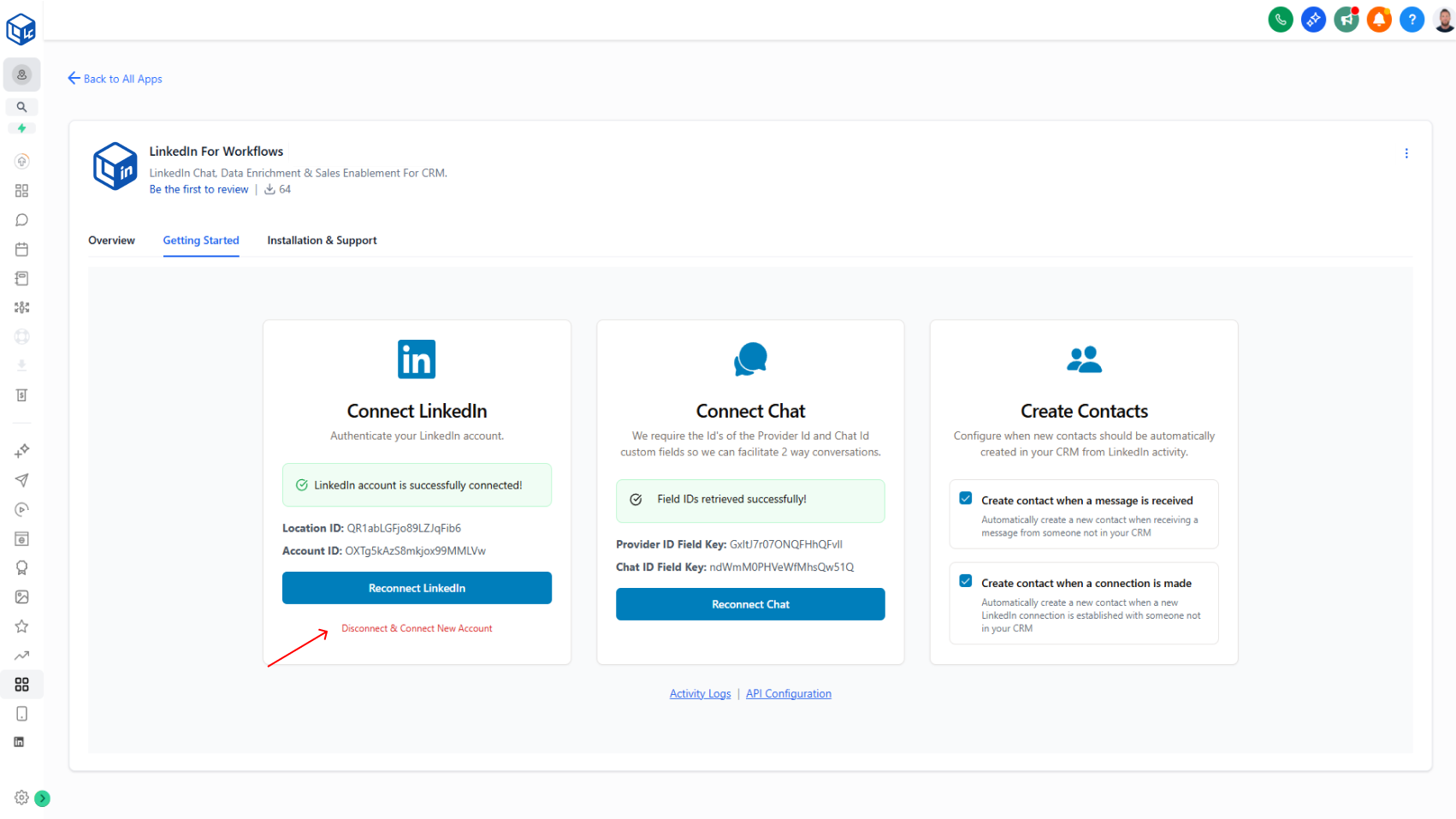
Switch LinkedIn accounts anytime without contacting support. Disconnect your current account and reconnect with a different account type (Sales Navigator, Recruiter, or Classic) directly from the Getting Started page.

Switch between different LinkedIn accounts or account types without support help.

What it does:

You now have full control over your LinkedIn account connection. If you've upgraded or downgraded to a different LinkedIn account type (Sales Navigator → Classic, Recruiter → Sales Navigator, etc.), you can disconnect your current account and reconnect a new one directly in the app.

  • Click Disconnect & Connect New Account (red text below the Reconnect LinkedIn button)
  • Follow the same authentication flow as your initial setup
  • Re-authenticate with your new LinkedIn account
  • Start using the features of your new account type immediately

Why it matters:

No more support tickets for account changes. You get instant autonomy to manage your own account upgrades, downgrades, and switches—keeping your workflow moving without friction.

How to use it:

Navigate to: Sidebar App Marketplace → Installed Apps → LinkedConnector → Getting Started tab → Connect LinkedIn card → Click Disconnect & Connect New Account

New Automatic Contact Creation Settings

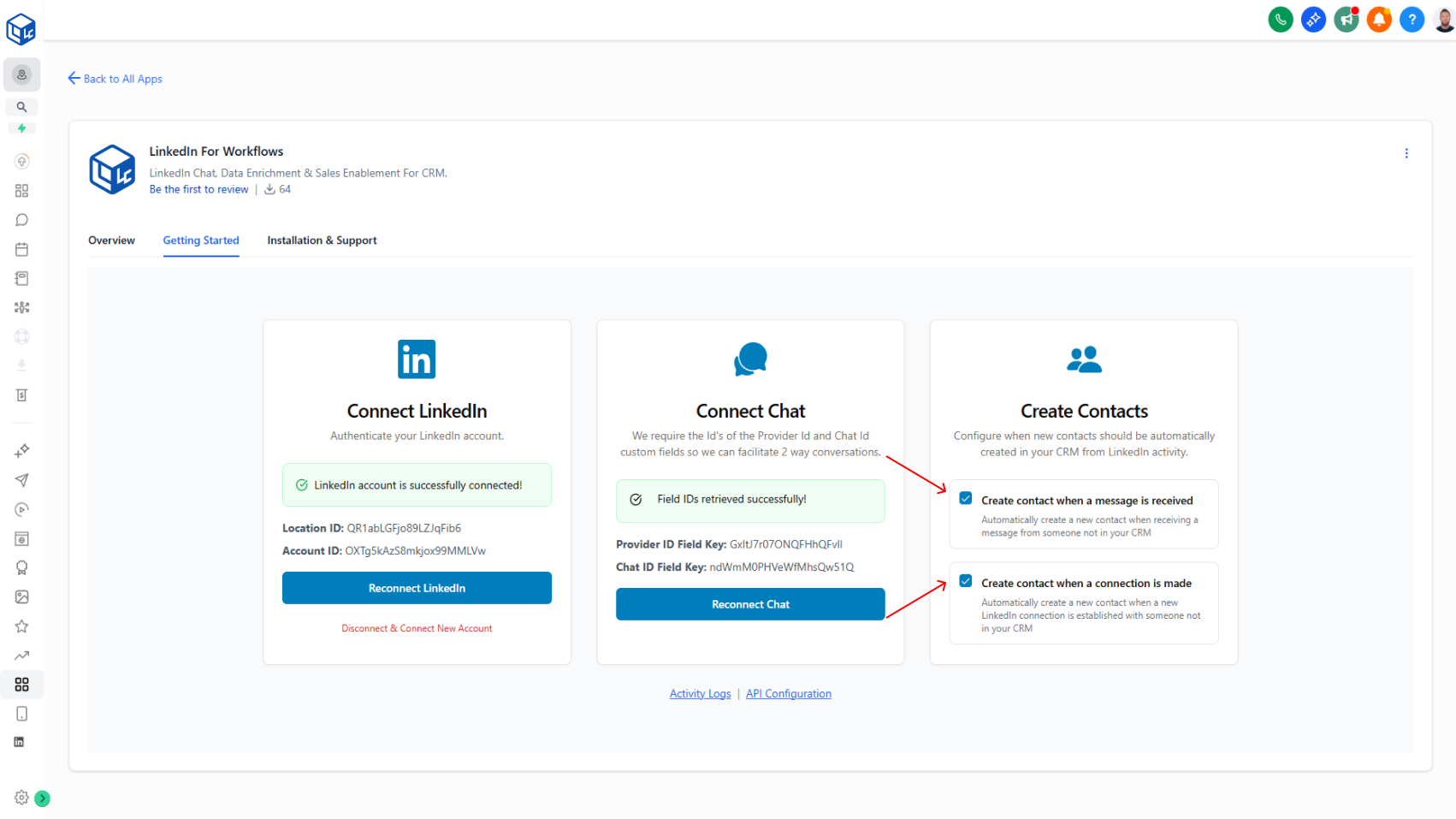
Automatically add new LinkedIn connections and message senders to your CRM with two toggles—no more contact creation workflows required.

Automatically add new LinkedIn connections and message senders to your CRM with 2 simple toggles on the Getting Started Page.

What it does:

When someone connects with you on LinkedIn or sends you a message, they're now automatically added to your CRM without you having to manually create them:

  • When a new person messages you → they're auto-added with their name, LinkedIn profile ID, and chat ID
  • When you accept a new connection → they're auto-added with their name and profile ID
  • Both toggles are off by default (you control what gets created)
  • Only creates contacts if they're not already in your system

Why it matters:

Saves you time on manual data entry. Your CRM stays fresh with new contacts automatically, and you don't have to set up complicated "Create Contact" workflow steps anymore.

Migrating from workflows:

If you're already using "Create Contact" actions in your 1A: New Connection and 1B: New Message workflows, you can simplify your setup:

  1. Enable the relevant toggle(s) on the Getting Started tab
  2. Delete the "Create Contact" steps from your workflows (no longer needed)
  3. The automatic toggles will handle contact creation from now on

How to use it:

Side Menu → App Marketplace → Installed Apps → LinkedConnector → Getting Started tab

Agency Management Dashboard

Manage all your subaccounts from one dashboard. View installation status, monitor workflow activity, configure branding, and troubleshoot issues across all your LinkedIn integrations—no more logging in and out.

Centralized control for managing all your subaccounts in one place.

What it does:

Instead of logging into each subaccount separately, you now have a single dashboard that shows all your LinkedConnector installations. View which subaccounts are connected, check their activity, configure branding, and access support—all from one interface.

  • See all subaccounts at a glance with connection status and last activity
  • Monitor workflow activity logs across all subaccounts with filtering and 30-day history
  • Configure your brand colors and customize the interface
  • Access documentation, setup videos, and support resources

Why it matters:

No more context-switching between accounts. You get instant visibility into what's working and what's not across your entire agency portfolio, so you can troubleshoot faster and keep everything running smoothly.

How to use it:

Access the Agency Management Dashboard:

https://api.linkedconnector.com/agency

Add the custom menu link to your agency menu to get started. Works for all agency-level accounts.

💡
Requires a white label domain. Contact support for a custom link if not white labelled

LinkedIn Lead Importer

We're excited to introduce the LinkedIn Lead Importer, a powerful new interface that streamlines the process of finding, organizing, and importing LinkedIn prospects directly into your CRM in just a few clicks.

Automatically import LinkedIn prospects into your CRM from search results, post engagement lists, or Sales Navigator leads.

What it does:

Paste any LinkedIn search URL, sales navigator link, or recruiter list into the importer. Filter by location, industry, company, job title, education, groups, and more. Preview your leads before importing. The system automatically detects duplicates and updates existing records instead of creating new ones.

  • Import with full enrichment data (first/last name, photo, LinkedIn ID)
  • Smart duplicate handling to keep CRM clean
  • Optional tag-based enrollment into workflows
  • Supports LinkedIn Classic, Sales Navigator, and Recruiter searches

Why it matters:

Eliminates hours of manual copy-paste work. Ensures your CRM stays clean with automatic duplicate detection. Launches campaigns faster with enrichment-ready data.

How to use it:

Add the custom menu link to your sub-accounts:

https://api.linkedconnector.com/import?locationid={{location.id}}

Rate Limit & Action Queue System

The Rate Limit & Action Queue System protects your LinkedIn account through automatic pacing and intelligent queuing. All actions execute sequentially with natural delays, respecting daily and weekly limits while maintaining compliance.

Automatic backend protection that queues your workflow actions to stay within LinkedIn's rate limits.

What it does:

Every workflow action enters a queue and executes sequentially with randomized 60–90 second delays between actions. When daily or weekly limits are reached, the queue automatically pauses and resumes when limits refresh. No workflow steps are lost—everything queues and executes in order.

  • Prevents high-volume API bursts that trigger LinkedIn blocks
  • Simulates natural human-like behavior patterns
  • Automatic limit enforcement and recovery
  • Zero configuration needed

Why it matters:

Protects your LinkedIn account from overuse and compliance violations. Ensures workflows run reliably without hitting rate limits that would block your account. You get consistent, predictable automation without manual monitoring or intervention.

Backend Migration to Lead Connectors SDK

Backend infrastructure upgrade using the Lead Connectors SDK modernizes authentication and token management. Your workflows run more reliably with fewer disconnects and better error handling—automatically.

Modernized backend architecture for more reliable OAuth handling and token management.

What Changed:

The authentication layer now uses the Lead Connectors SDK to fully automate OAuth 2.0 processes. This replaces manual token management with automatic app installation, daily token refresh, automatic cleanup detection, and improved error handling. The system is database-agnostic and follows industry-standard session management.

What It Means for You:

No action required on your end. Your existing workflows continue running normally, but with significantly higher reliability. CRM connections stay authenticated longer with fewer interruptions. Messaging, profile retrieval, search, and chat actions execute with improved consistency. Reconnect prompts happen less frequently because token refresh is now fully automated.

Why It Matters:

Fewer authentication errors means fewer failed actions. Reduced downtime from unexpected disconnects. Your workflows run smoother because the foundation beneath them is more stable. Future LinkedIn features will be built on top of this stronger, more reliable infrastructure.

Reference: https://linkedconnector.com/changelog/backend-migration-to-lead-connectors-sdk/

Workflow Action - Separate Messages and InMail Actions

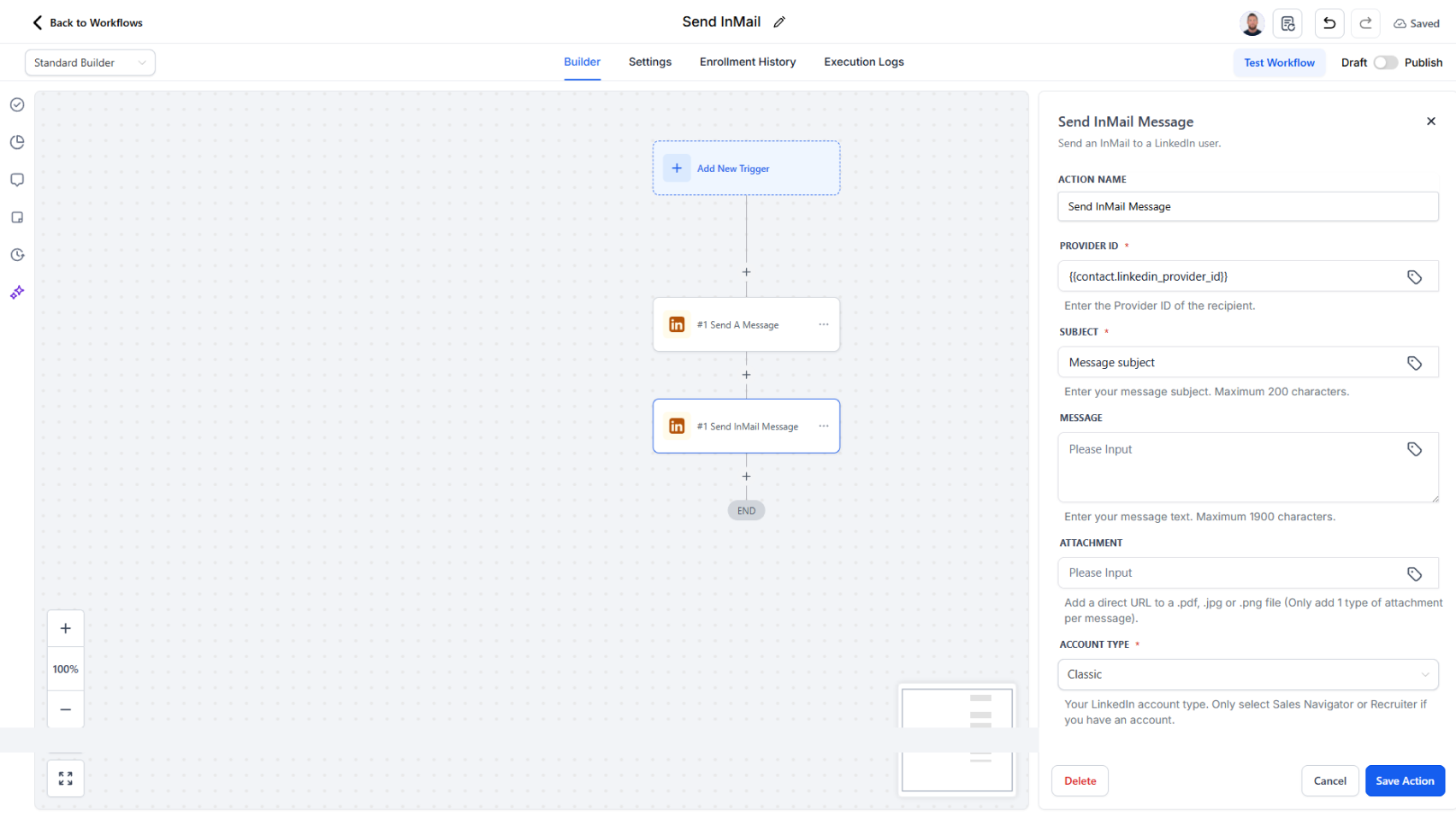
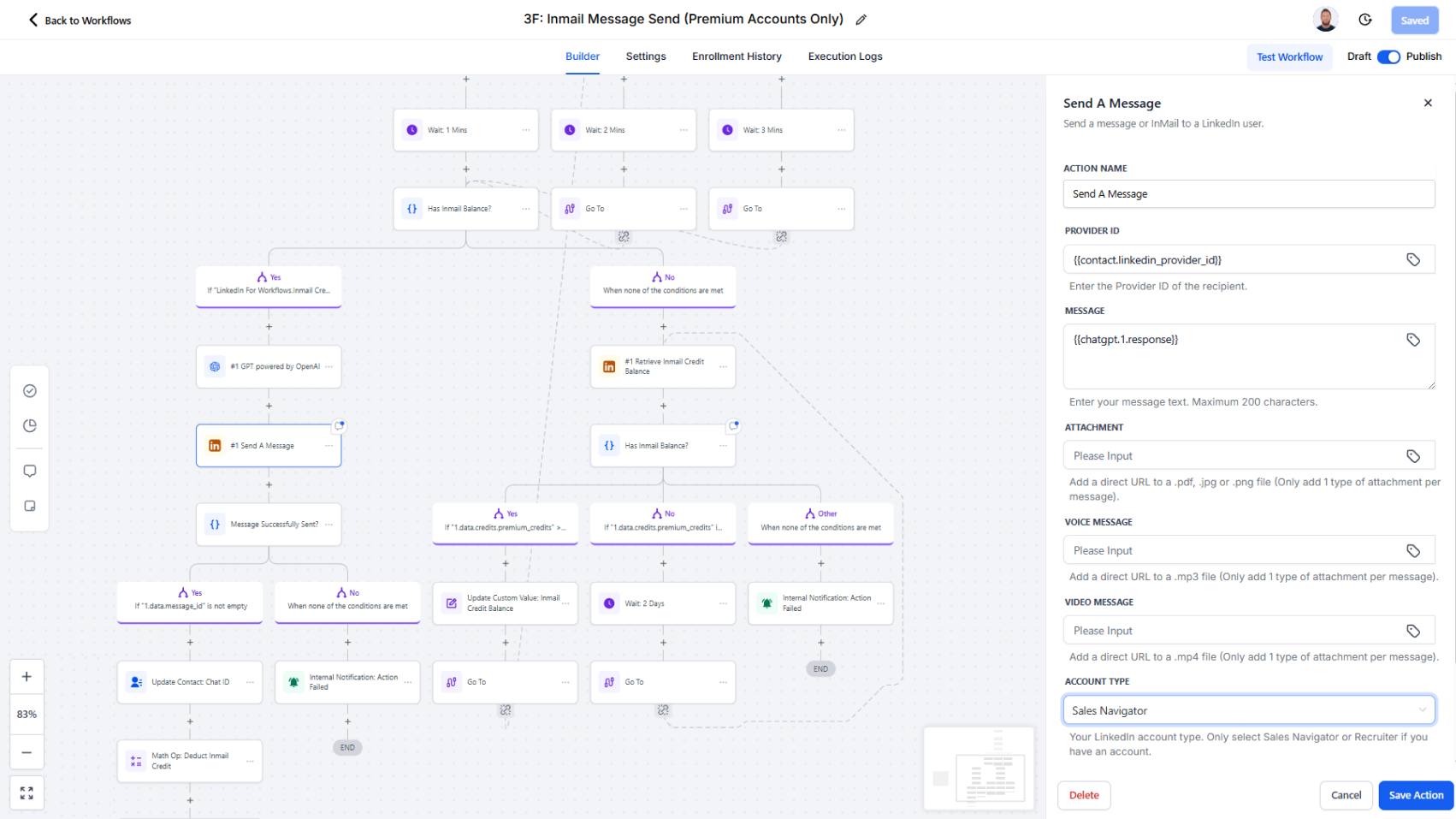
Messages and InMail now have separate workflow actions for clearer setup and better tracking.

LinkedIn messages and InMail now have their own dedicated actions instead of sharing one.

What changed:

Previously, a single "Send Message" action handled both regular messages and InMail, which made it unclear which fields applied to which communication type. Now each has its own action with a simplified field set.

What each action does:

  • Send A Message — Send direct messages to existing LinkedIn connections. Configure message content and delivery timing.
  • Send InMail Message — Send premium InMail outreach using LinkedIn's InMail feature. Simplified setup with only InMail-relevant fields.

Workflow logs now distinguish between "Message Sent" and "InMail Sent" events, so you can easily track which communication type was executed.

Why it matters:

Reduces configuration errors by hiding irrelevant fields. Makes debugging simpler—you can see exactly which action ran and why. Clearer logs mean better monitoring and reporting.

What you need to do:

If you have existing workflows using InMail, replace the old "Send Message" action with the new "Send InMail Message" action. Search your workflows for InMail to find any that need updating.

Workflow Action - ElevenLabs Voice Generation

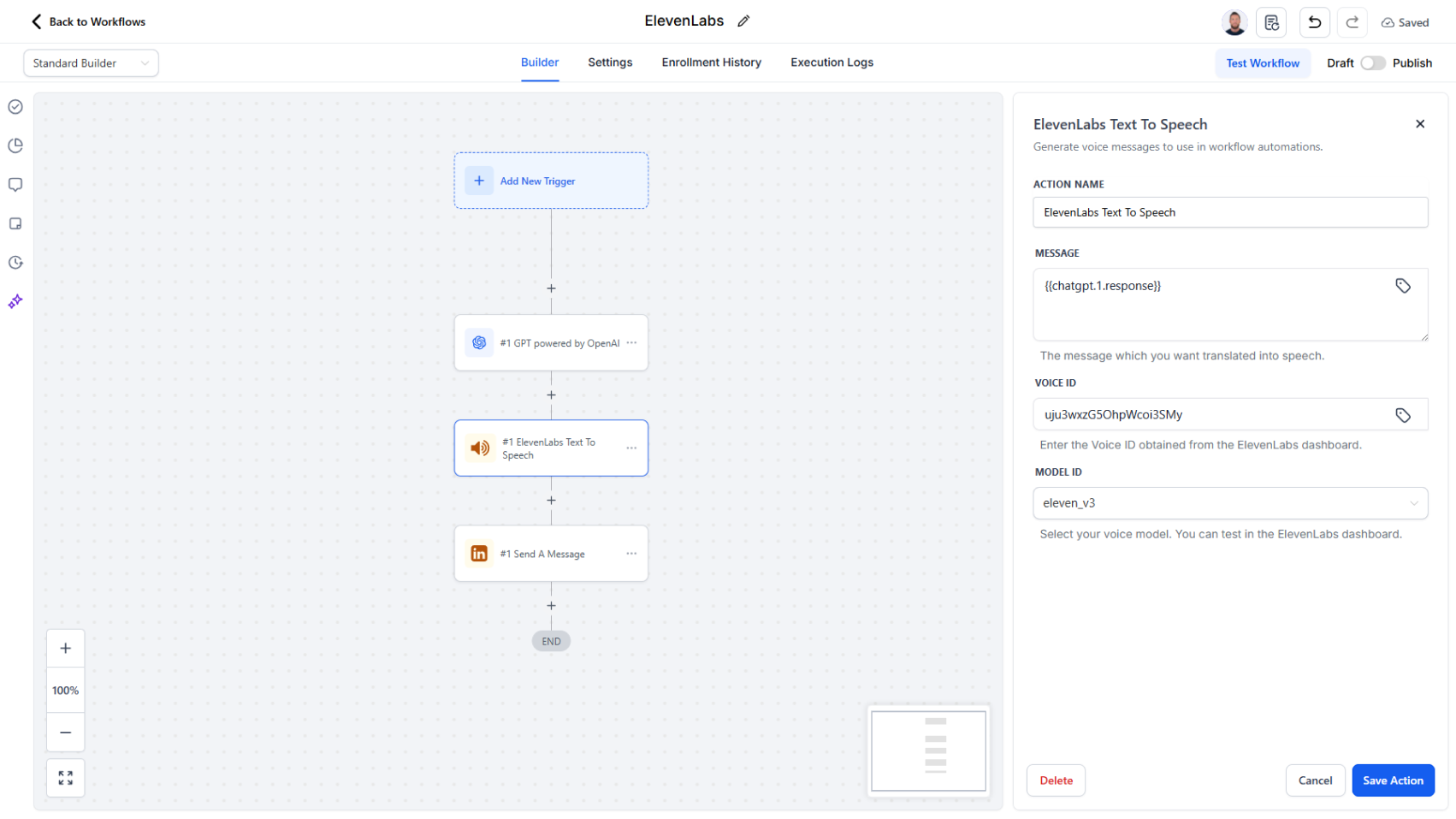
Generate realistic voice messages in workflows and send them through LinkedIn chat—perfect for personalized follow-ups and warm introductions.

Convert text into natural-sounding voice messages inside your workflows.

What it does:

Add the "Generate Voice Message (ElevenLabs)" action to any workflow. Write your message or have AI generate one, select a voice (choose from multiple languages and accents), and the action instantly produces a natural-sounding audio file. Attach the generated audio to a Send Message action to deliver it through LinkedIn chat.

  • Works with any text message (personalized introductions, follow-ups, etc.)
  • Multiple voice options, languages, and accents available
  • Audio generates instantly within the workflow
  • Seamless integration with Send Message action

Why it matters:

Voice messages feel more authentic and personal than text, leading to better engagement and response rates—all at automation speed. Combines the efficiency of workflows with the warmth of human communication.

How to use it:

Add "Generate Voice Message (ElevenLabs)" to your workflow → Provide your text (or use AI to generate it) → Select your voice → Attach the audio URL to a "Send Message" action.

Activity Logs for Failed Actions

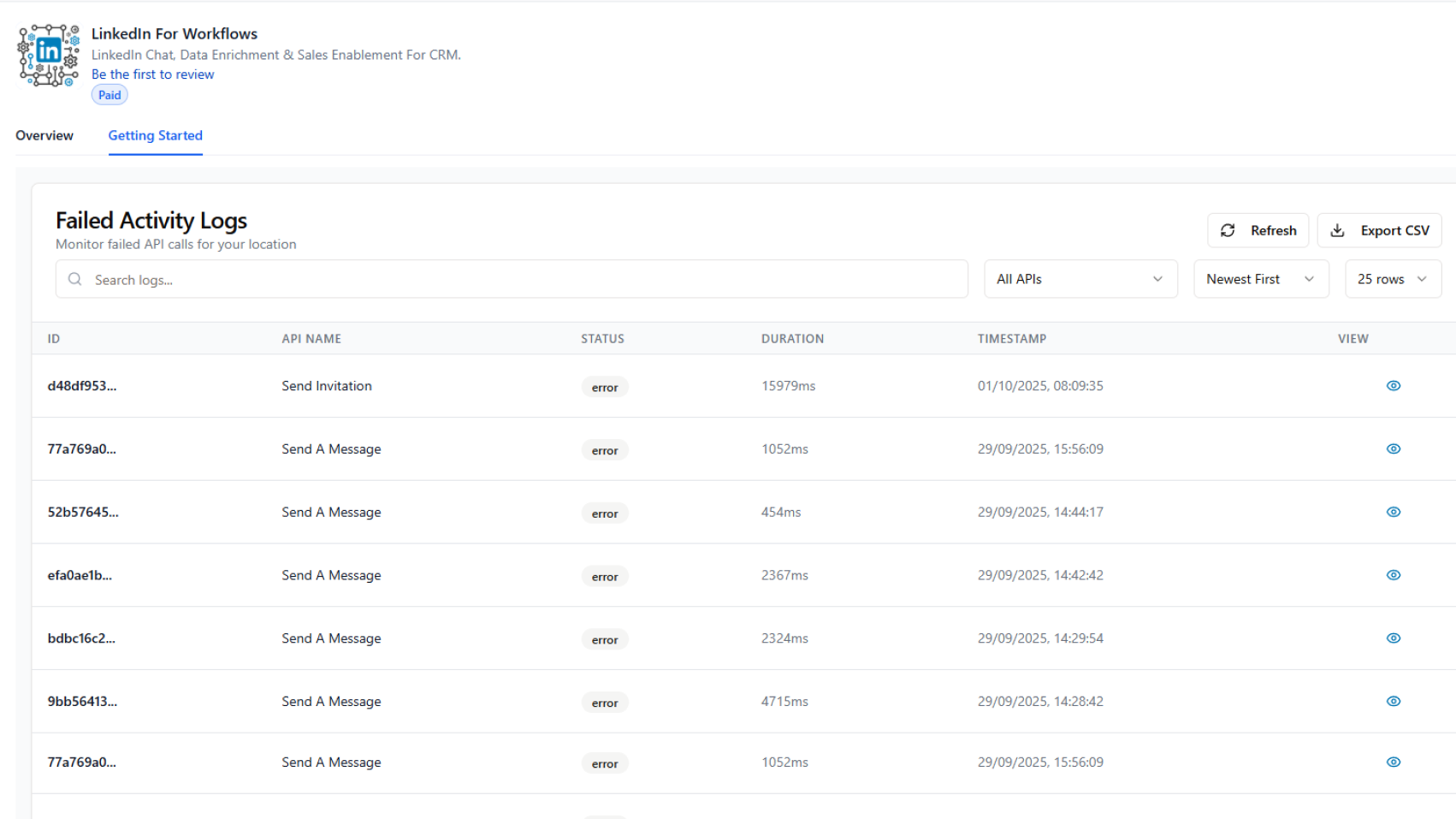
Failed Activity Logs now appear on the Getting Started page, showing exactly why LinkedIn actions failed with full request and response details for faster troubleshooting.

See why LinkedIn actions failed and troubleshoot faster with detailed request and response data.

What changed:

A new Failed Activity Logs section at the bottom of the Getting Started page displays all failed action API calls in one place.

What it does:

Each log entry shows:

  • Action type (e.g., Send Invitation, Send a Message)
  • Error status and timestamp
  • Duration of the call
  • Unique failure ID for reference

Click the View icon to open the full log entry and see both the request data sent and the system's response, giving you actionable context for troubleshooting.

Why it matters:

Quickly identify why an action failed without guesswork. See both sides of the conversation (what you sent vs. what the system replied). When you need support, reference the failure ID and error message for faster resolution.

Workflow Action - Send A Message

We’ve simplified and enhanced LinkedIn messaging inside your workflows by combining “Start A Chat” and “Send A Message” into one streamlined action. This makes it easier than ever to manage conversations directly from your automation builder.

What’s New

  • One Action for All Messaging: No need to choose between starting a chat or sending a message—everything is now handled through a single, unified action.
  • Rich Media Support: In addition to text messages, you can now send:
    • Attachments (documents, images, files)
    • Voice messages
    • Video messages

Why This Matters

  • Simplifies workflow setup with fewer actions to configure
  • Provides more ways to engage prospects and connections authentically
  • Enhances personalization by supporting voice and video formats, not just text
  • Reduces friction between chat initiation and ongoing messaging

Rate Limit Status Feedback

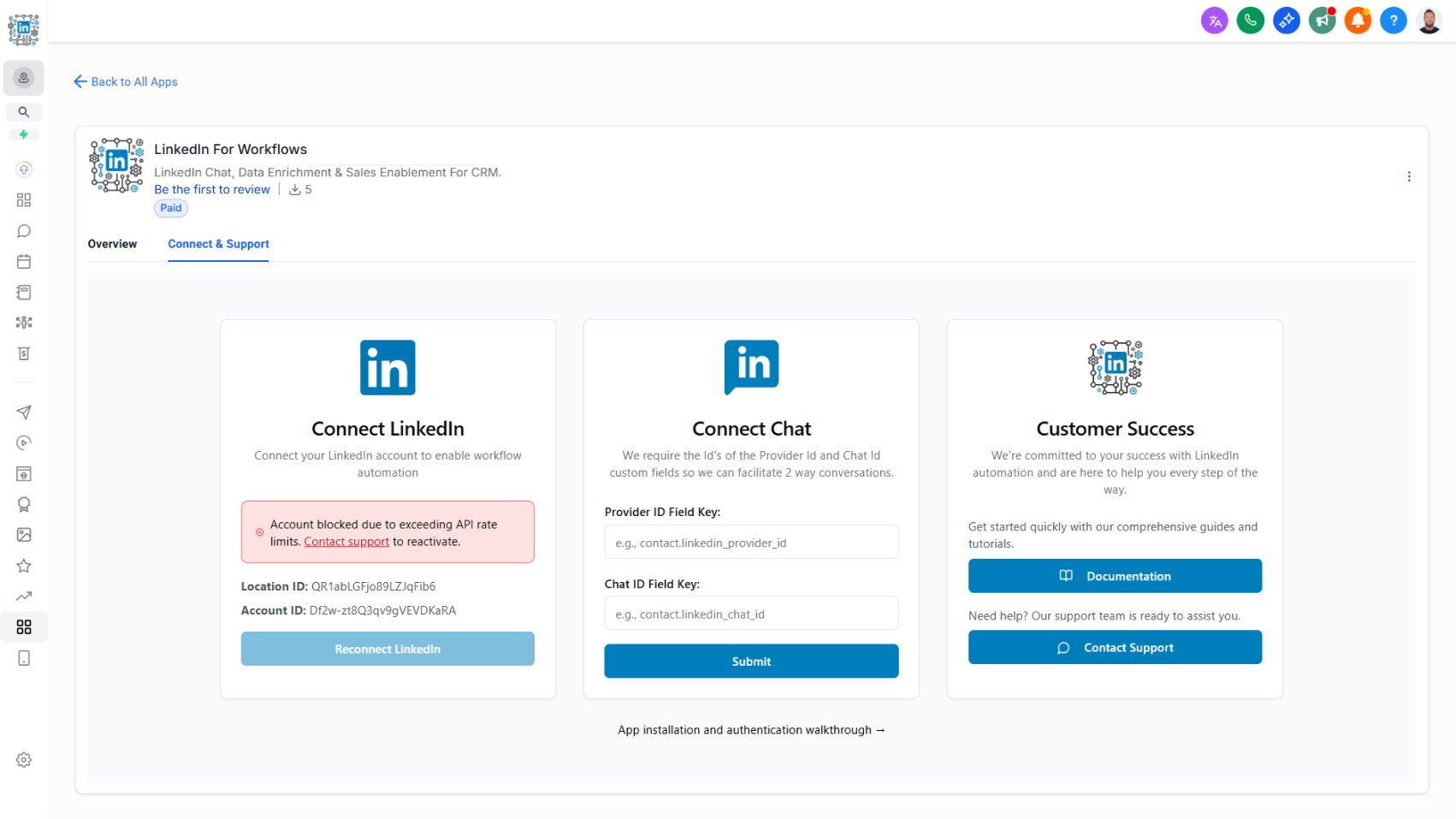
Rate limit status indicator on Getting Started page shows when your account has reached LinkedIn's rate limits.

Know instantly when your account has hit rate limits.

What it does:

A visual indicator appears on your Getting Started page when your account reaches LinkedIn's rate limits. This gives you immediate visibility into whether your account is temporarily blocked due to exceeding activity thresholds.

  • Visual indicator shows on Getting Started page
  • Appears when rate limits are reached
  • Lets you know your account is temporarily blocked
  • No configuration needed — it's automatic

Why it matters:

When workflows slow down or stop unexpectedly, it's easy to wonder what went wrong. This indicator answers that question immediately: if you see the rate limit warning, you know to pause activity and let your account recover. Without it, you're left guessing whether there's a technical issue or an account block.

Understanding rate limits helps protect your account long-term and keeps the platform stable for everyone.

Authentication Flow Upgrade

A new authentication process streamlines LinkedIn setup, supports bulk installs, and enables agency-managed deployments.

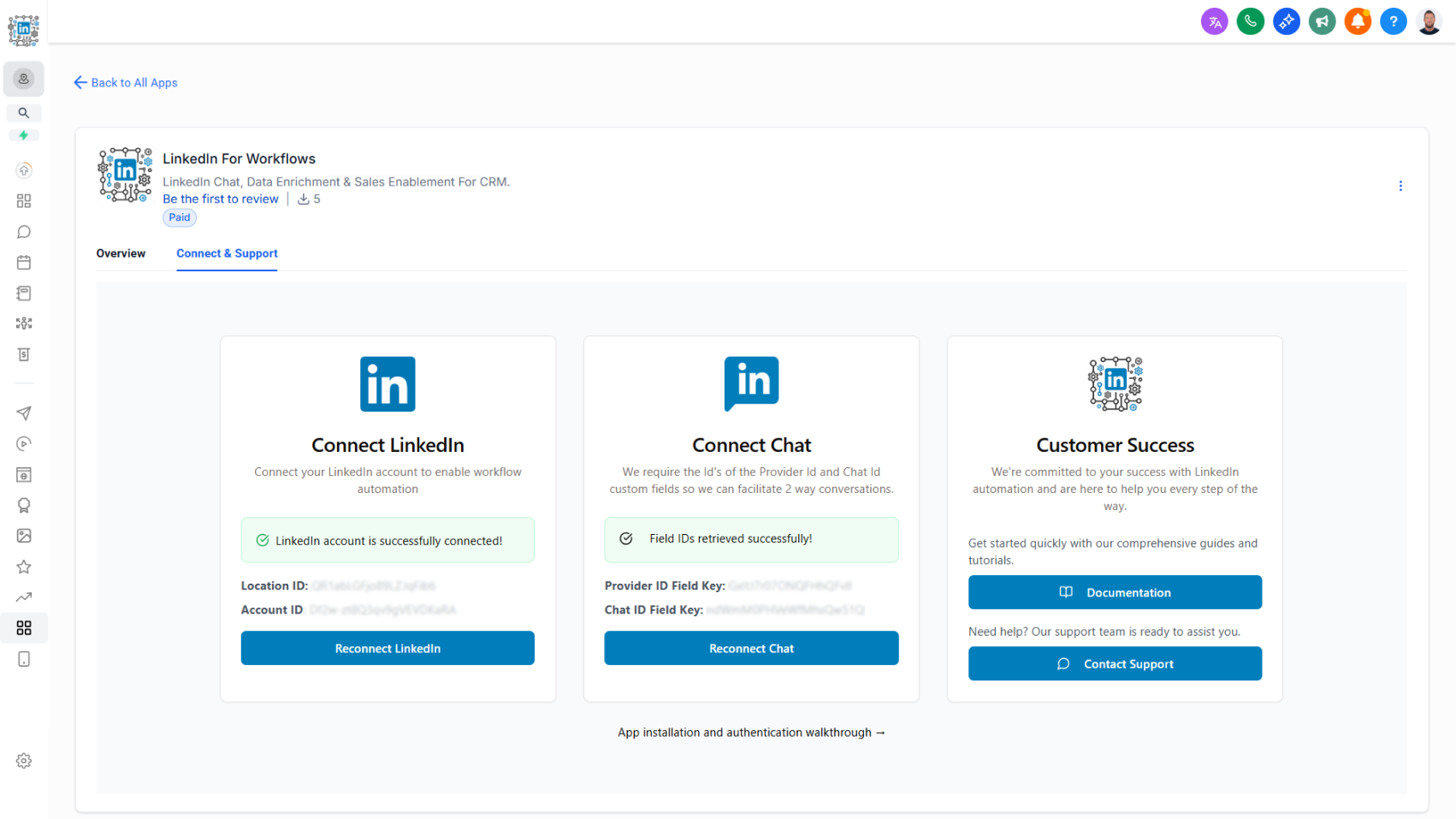
As part of the CRM platform’s migration to a new app distribution method, we’ve rebuilt the authentication flow for LinkedConnector. The new process simplifies setup, improves clarity, and supports both individual and agency installations.

How it works today:

  • Access the new authentication flow from the Connect and Support tab in the app profile.
  • Two new authentication cards are available:
    • Connect LinkedIn: Guides you through the LinkedIn authentication process with live feedback confirming whether your account is connected and active.
    • Connect Chat: Requires a Provider ID custom field key and a Chat ID custom field key to store identifiers used for two-way messaging.
  • Agencies can now complete bulk installations on behalf of their clients. Clients then complete the LinkedIn authentication and maintain it independently.

Why this matters:

Supports scalable bulk installations for faster onboarding

  • Enables agency-led deployments while allowing clients to manage their own authentication
  • Provides live connection status for greater clarity and troubleshooting
  • Ensures smooth setup for two-way LinkedIn messaging through proper field mapping

Workflow Action - Send a Message to a Chat

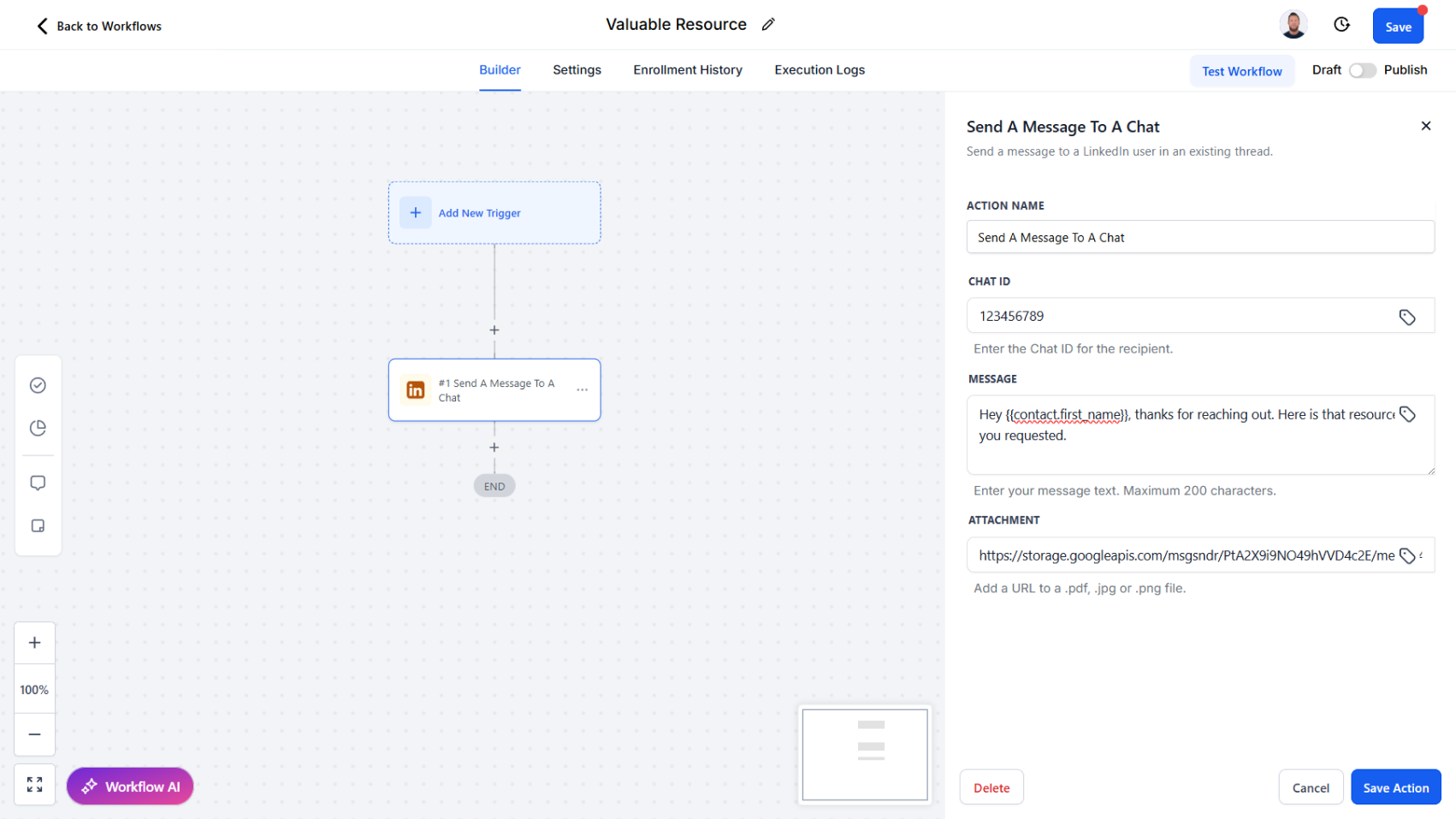
Continue LinkedIn conversations seamlessly by sending messages and attachments directly into an existing chat thread.

We’ve introduced a new workflow action, Send a Message to a Chat, designed for ongoing LinkedIn conversations. This action makes it simple to engage once a chat has already been started using the Start a Chat action.

How it works today:

  • Provide the Chat ID of the conversation.
  • Enter your message content.
  • Optionally, include an Attachment URL to send a file alongside your message.
  • Attachments must be in a LinkedIn-supported format such as PDF, image, video, audio, CSV, or text file.

Why this matters:

  • Maintain continuity by messaging directly into active conversations
  • Enrich communication with relevant attachments (e.g., case studies, product one-pagers, proposals)
  • Automate both text and file sharing without leaving your CRM
  • Create scalable yet personalized follow-ups for LinkedIn engagement

Workflow Action - Start a Chat

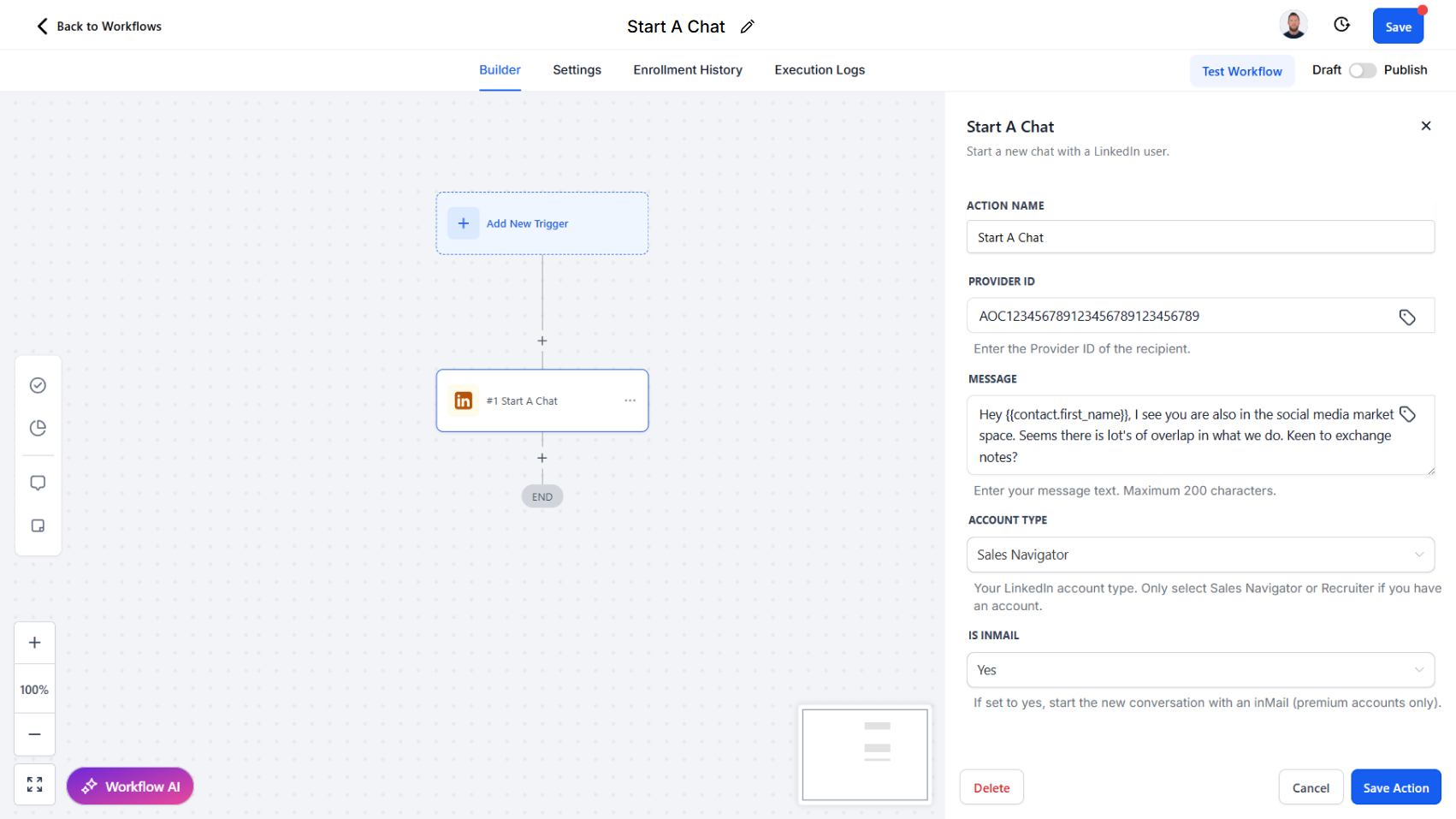
Initiate new LinkedIn conversations with InMail or direct messages, returning a chat ID for ongoing communication.

We’ve updated the Send a Message action to Start a Chat. This action is now the dedicated way to send the very first message to a LinkedIn user when no existing chat thread exists.

How it works today:

  • Provide a Provider ID of the recipient.
  • Enter your message content.
  • Select your account type and indicate whether the message is an InMail.
  • The action initiates a new conversation and returns a Chat ID, which can then be stored and used for sending subsequent messages within the same thread.

Why this matters:

  • Establish clear workflows for starting new conversations versus continuing existing ones
  • Ensure accurate tracking by always receiving a chat ID for ongoing engagement
  • Enable streamlined use of InMail for outreach when no prior chat history exists
  • Provide a cleaner separation between conversation initiation and follow-up messaging actions

Workflow Action - React to a Post

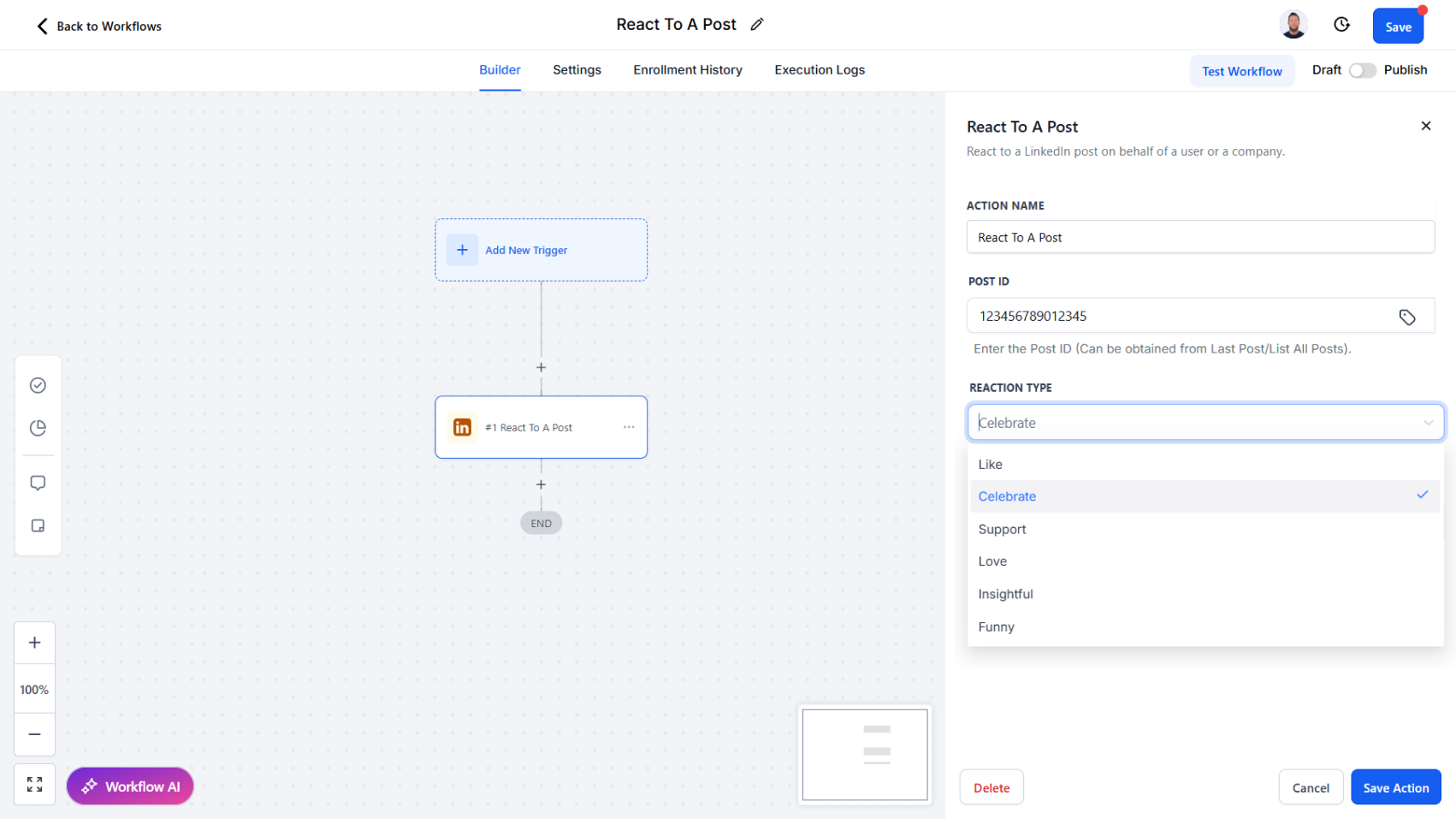
Engage with LinkedIn content at scale by automating reactions from your personal or company account.

We’ve introduced a new workflow action, React to a Post, which allows you to add reactions to LinkedIn content directly through your workflows. This action complements Retrieve Last Post and Comment on a Post, giving you multiple ways to automate authentic engagement.

How it works today:

  • Provide a Post ID or use the ID retrieved from the Retrieve Last Post action.
  • Select from available reactions: Like, Celebrate, Support, Love, Insightful, or Funny.
  • React using your personal LinkedIn account or, with the right permissions, on behalf of a company page.

Why this matters:

  • Boost visibility by engaging with prospects’ or companies’ content consistently
  • Showcase company presence by reacting as your business page
  • Strengthen relationships with quick, meaningful engagement signals
  • Automate post engagement as part of wider outreach and nurturing workflows

Workflow Action - Comment on a Post

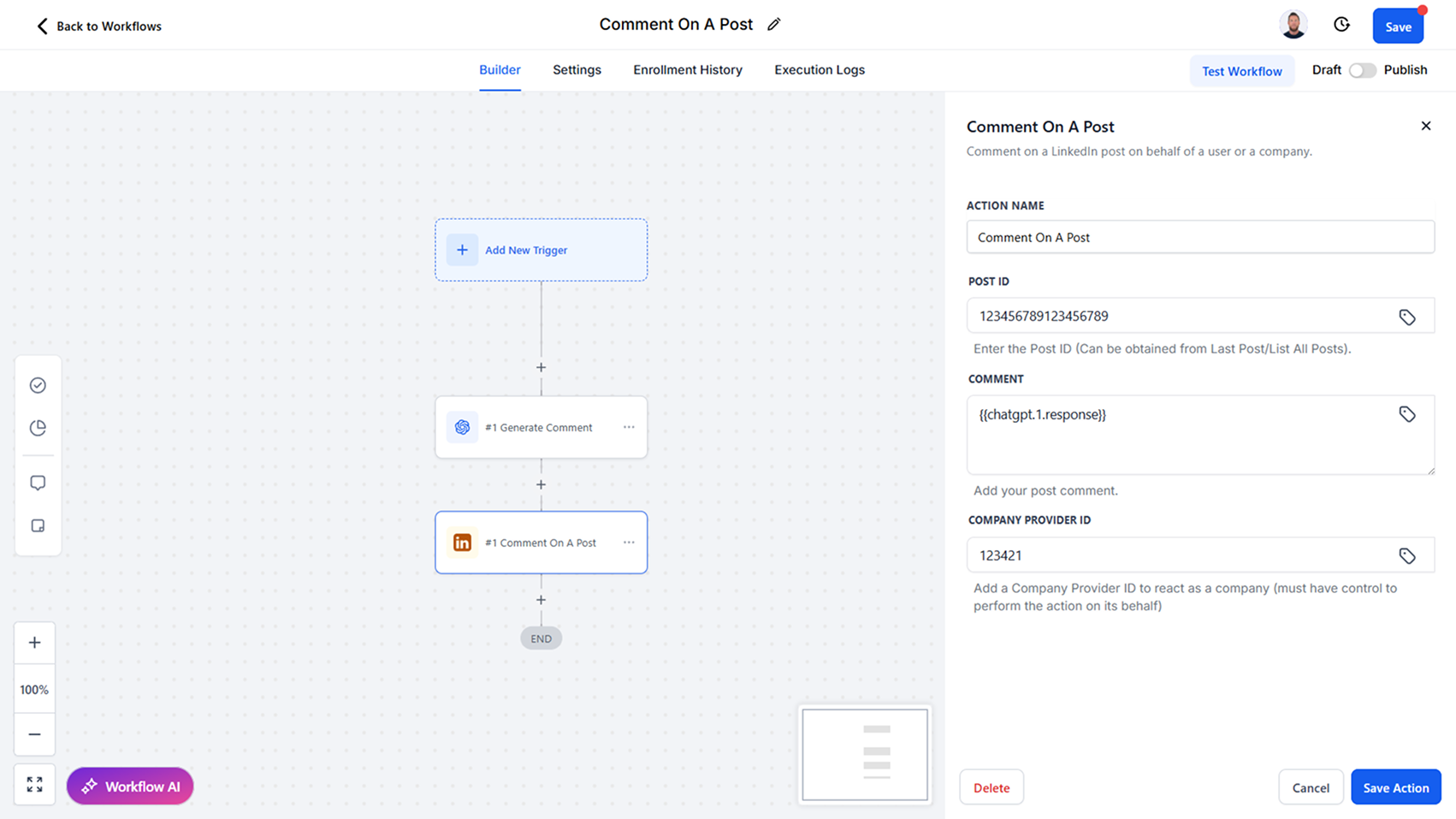
Automate LinkedIn engagement by commenting on posts as yourself or on behalf of a company.

We’ve added a new workflow action, Comment on a Post, enabling you to leave comments on LinkedIn content directly through your workflows. This action works seamlessly with Retrieve Last Post, making it easy to comment on the latest activity from a user or company.

How it works today:

  • Provide a Post ID or use the ID retrieved from the Retrieve Last Post action.
  • Post a comment as your personal LinkedIn account.
  • If you have the required permissions, you can also comment on behalf of a company page.

Why this matters:

  • Drive engagement by commenting on prospects’ or companies’ latest posts
  • Support company-wide thought leadership by engaging through your business page
  • Automate timely interactions without leaving your CRM
  • Create scalable engagement strategies that feel personalized and relevant

Workflow Action - Retrieve Last Post

Access the latest LinkedIn post from a user or company with detailed engagement metrics for smarter interactions.

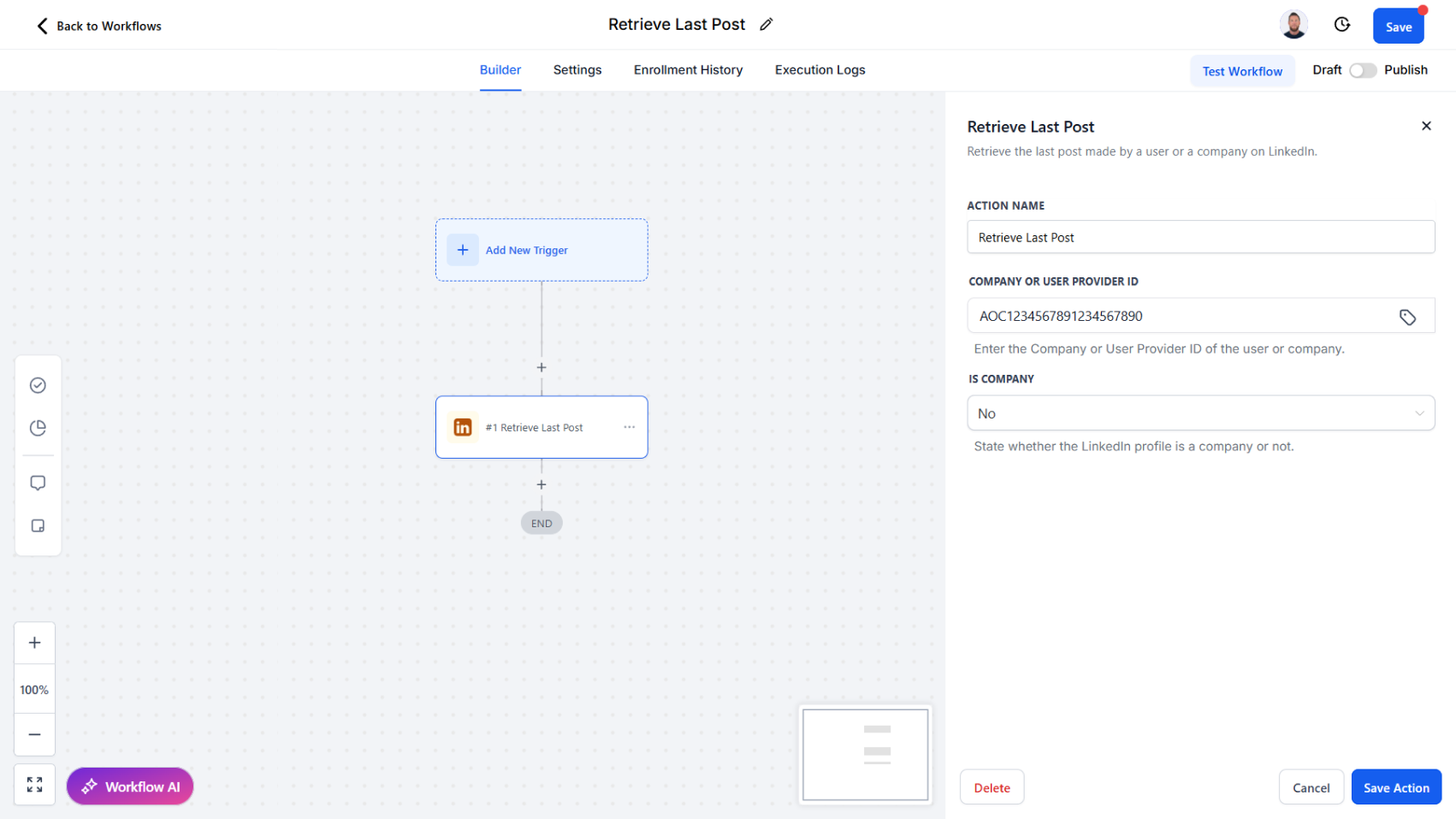
We’ve introduced a new workflow action, Retrieve Last Post, which allows you to automatically pull the most recent post from a LinkedIn user or company. This action is designed to provide both the post itself and rich engagement data, enabling more contextual and timely responses.

How it works today:

The Retrieve Last Post action retrieves the latest published post along with key details, including:

  • Post ID and share URL
  • Date and hours since posting
  • Post text and whether it is a repost
  • Comment count, impressions, and reaction count
  • Whether commenting, reacting, or sharing is allowed
  • Author information

Why this matters:

  • Engage more meaningfully by commenting or reacting to the most recent post
  • Use post insights (impressions, comments, reactions) to guide when and how you engage
  • Personalize outreach with context from a contact’s or company’s latest activity
  • Automate timely engagement strategies directly in your workflows

Improved: Workflow Action - Search People

Refine your LinkedIn people searches with new filters for title, keywords, and company history.

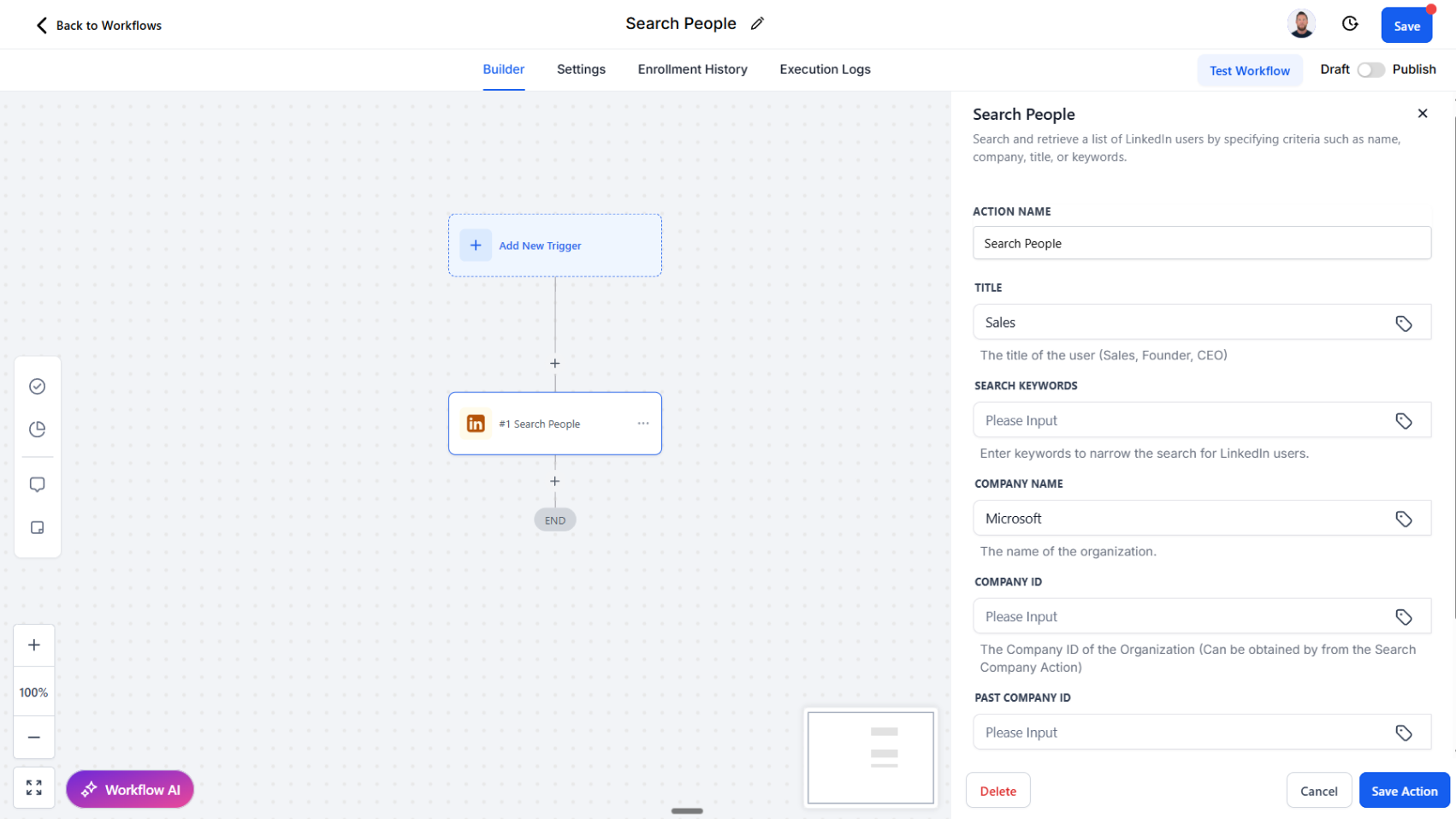
We’ve expanded the Search People workflow action to give you more precision and control when finding LinkedIn users. This update makes it easier to narrow down your searches and target the right audience for your workflows.

How it works today:

The Search People action now includes additional filtering fields to refine search results:

  • Title: Search by role (e.g., CEO, Founder, Sales).
  • Keywords: Search by industry, sector, or other keywords.
  • Company Name: Search by current company.
  • Company ID / Past Company ID: Search for individuals associated with a company, including past employees (e.g., former Salesforce employees).

Why this matters:

  • Gain sharper targeting when prospecting or segmenting contacts
  • Identify prospects based on roles, industries, or company history
  • Build more relevant and qualified lead lists
  • Automate enriched searches directly within workflows without manual effort

Workflow Trigger - New Connection

Automatically launch workflows the moment a new LinkedIn connection is made.

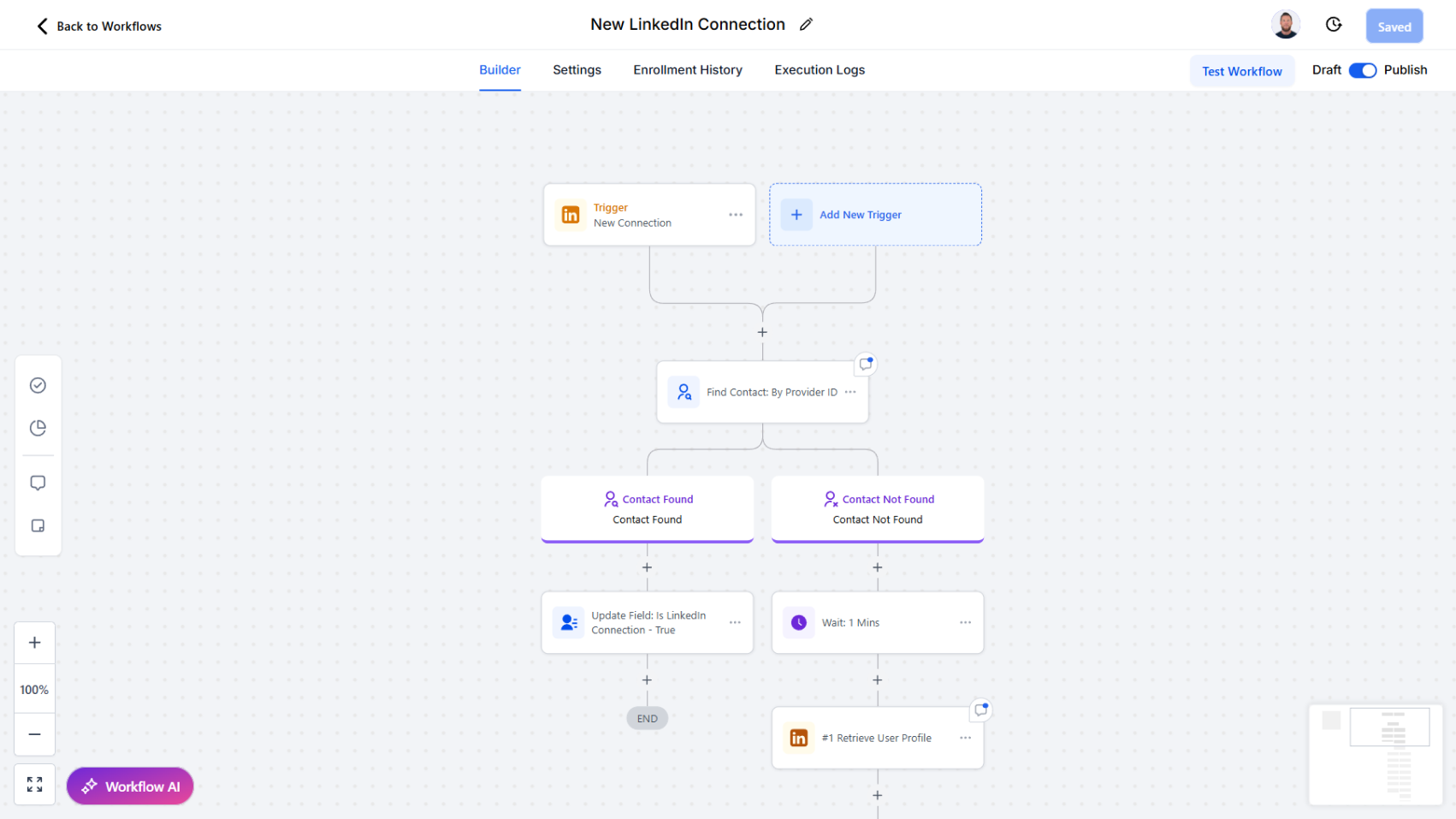
We’ve introduced a new trigger to help you act quickly on valuable new relationships. The New Connection trigger activates workflows as soon as a new LinkedIn connection is established.

How it works:

  • Whenever a new connection is added, the workflow is triggered instantly.
  • From there, you can chain follow-up actions such as:
    • Find or create a contact in the CRM
    • Tagging the new contact for organization and segmentation
    • Sending a welcome or follow-up message
    • Enriching the profile with LinkedIn data
    • Firing off subsequent workflows and actions inside your CRM

Why this matters:

  • Take immediate action on every new LinkedIn connection
  • Streamline onboarding, introductions, or outreach workflows
  • Ensure new contacts are properly tagged and organized
  • Strengthen relationship-building with timely, automated engagement

Workflow Trigger - New Message

Easily capture inbound LinkedIn messages and trigger automated workflows for faster, smarter responses.

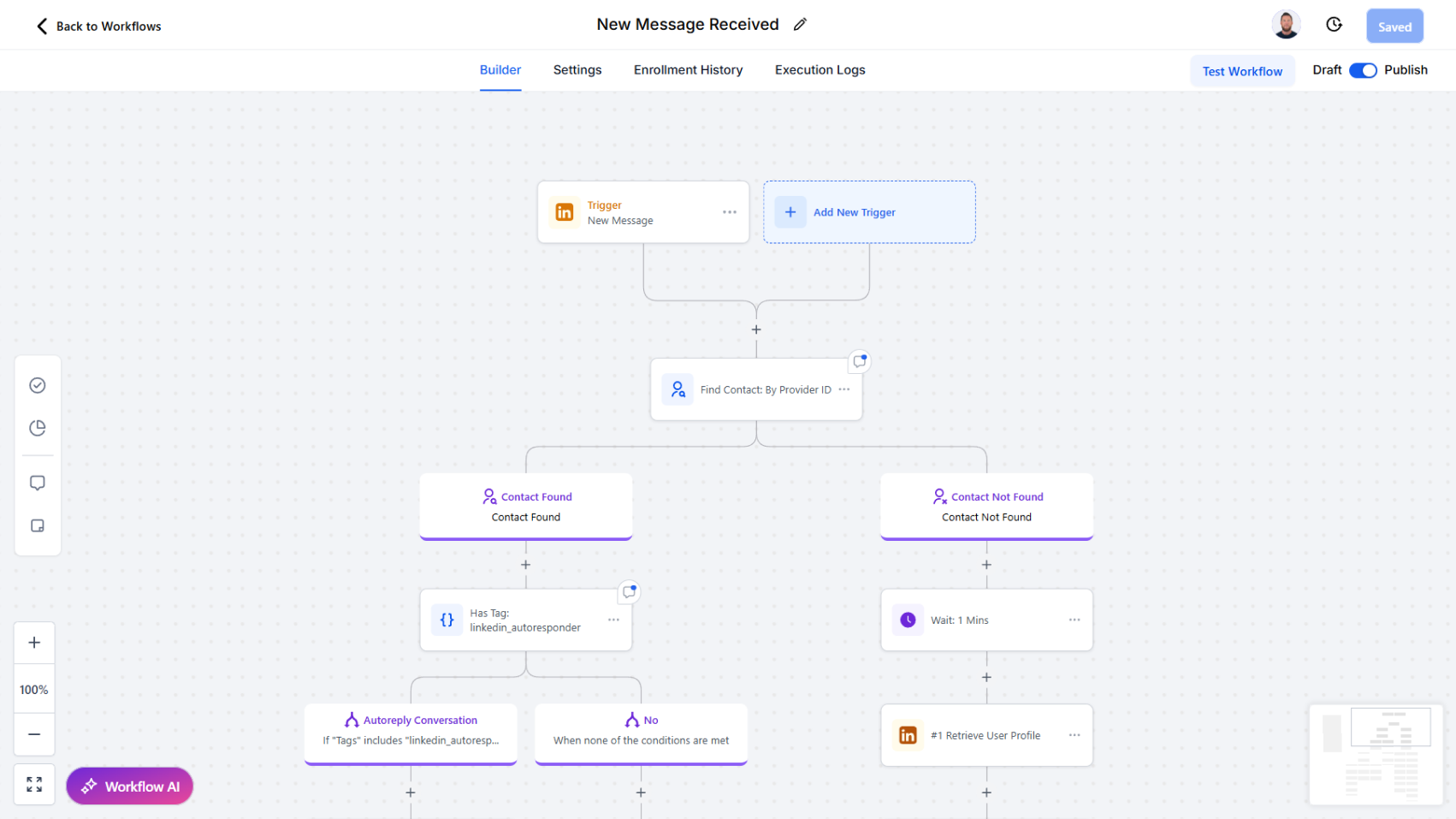
We’ve added a powerful new trigger to help you automate workflows around LinkedIn conversations. The New Message trigger allows workflows to start automatically whenever a new message is received in your LinkedIn account.

How it works:

  • When a new message arrives, the workflow is triggered instantly.
  • You can then chain follow-up actions such as:
    • Look up a contact by provider ID, Name etc.
    • Find an existing contact
    • Find or create a new contact
    • Trigger any subsequent workflow actions (e.g., send alerts, update records, or launch nurture sequences)

Why this matters:

  • Never miss an inbound message from a connection
  • Route LinkedIn conversations into your CRM in real time
  • Automate contact matching and enrichment without manual effort
  • Kick off personalized workflows (e.g., task creation, follow-up reminders, or handoff to sales teams)

Two-Way LinkedIn Messaging

Send and receive messages with attachments, auto-create leads from inbound chats, and track delivery receipts.

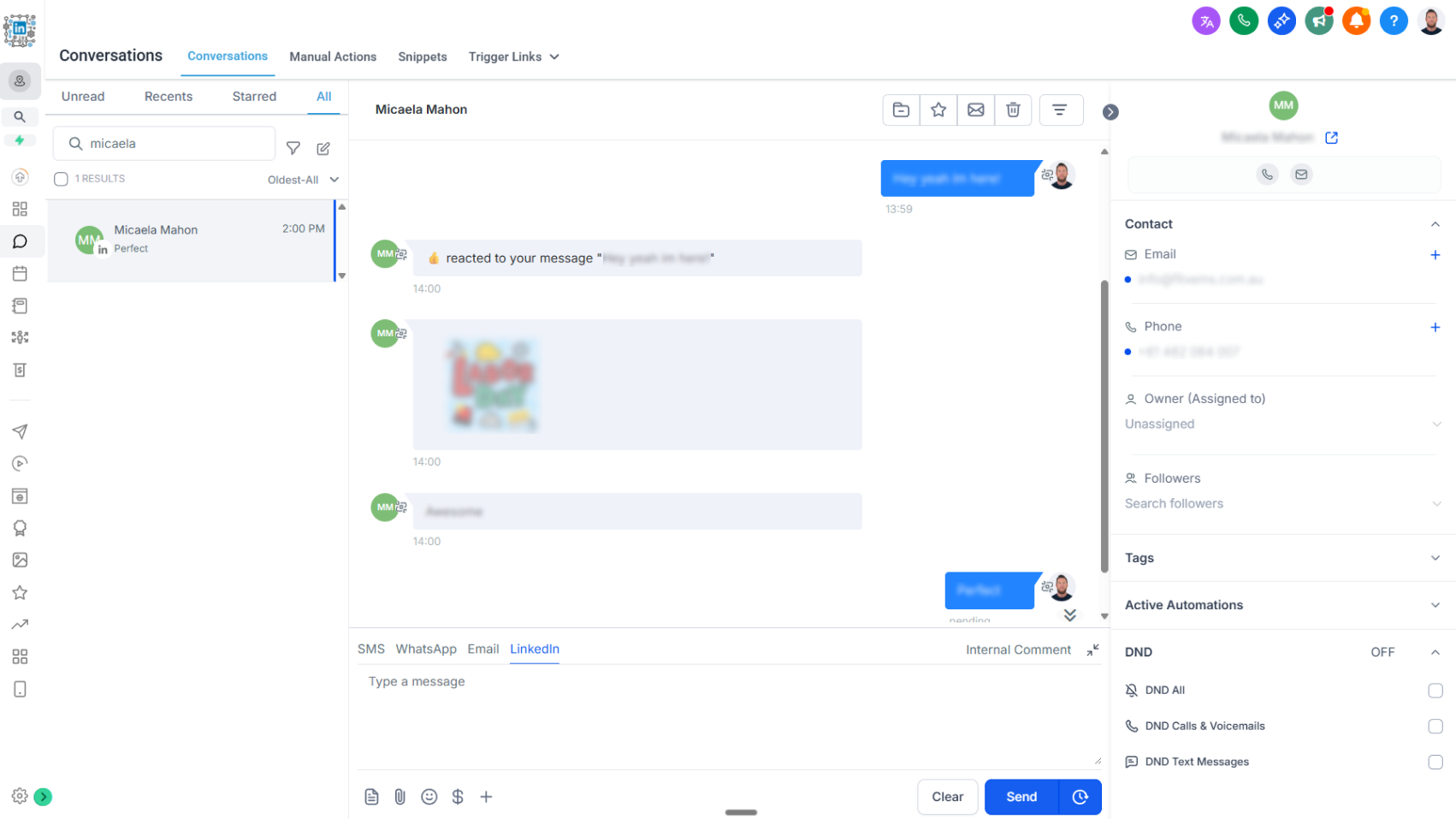
We’re excited to announce the release of two-way LinkedIn chat, bringing real-time LinkedIn messaging directly into your CRM conversations flow.

What’s New

  • Send & Receive Messages: Engage with your LinkedIn connections without leaving the CRM.
  • Rich Media Support: Share and receive attachments including PDFs, images, videos, and audio files. Attachments are stored for 3 months before expiration.
  • Lead & Contact Creation: When a new LinkedIn user messages you, their information is automatically captured to create a lead or contact record in the CRM.
  • Delivery Receipts: Track message delivery to know when your outreach has successfully landed.

How It Works

  • All LinkedIn chats now appear in the CRM conversations tab for seamless communication.
  • Messages sent through new workflow actions Start a Chat and Send a Message also sync into conversations, ensuring a complete message history.
  • Incoming LinkedIn messages can trigger workflows, enabling automated follow-ups, lead assignment, or nurturing actions.
  • Authentication has been updated to accommodate additional fields required for chat functionality. View updated authentication steps here.

Why It Matters

This update bridges LinkedIn engagement with your CRM in a powerful new way:

  • Capture every opportunity: Turn inbound LinkedIn chats into new leads or contacts automatically.
  • Stay in sync: Manage conversations from one central CRM hub.
  • Work with context: Keep a full history of chats and attachments connected to each contact.
  • Stay reliable: Delivery receipts provide confidence that your outreach is reaching the intended recipient. We’re excited to introduce two-way LinkedIn chat, bringing real-time LinkedIn messaging seamlessly into your CRM conversations flow.

How it works today:

  • All LinkedIn chats now appear in the CRM conversations tab for unified communication.
  • Messages sent through workflow actions such as Start a Chat and Send a Message automatically sync into conversations, creating a complete message history.
  • Incoming LinkedIn messages can trigger workflows, enabling automated follow-ups, lead assignment, or nurturing actions.
  • Authentication has been updated to support additional fields required for chat functionality.

Key features:

  • Send & Receive Messages: Engage with your LinkedIn connections without leaving the CRM.
  • Rich Media Support: Share and receive attachments including PDFs, images, videos, and audio files (attachments stored for 3 months before expiration).
  • Lead & Contact Creation: Automatically capture new LinkedIn users as leads or contacts when they message you.
  • Delivery Receipts: Track message delivery to confirm when outreach has successfully landed.

Why this matters:

  • Capture every opportunity: Turn inbound LinkedIn chats into leads or contacts instantly.
  • Stay in sync: Manage all conversations from one central CRM hub.
  • Work with context: Keep a full history of chats and attachments tied to each contact.
  • Stay reliable: Delivery receipts provide confidence that your outreach is reaching the intended recipient.